Rates, snoozing and writing off
How time finds its rate, fixing No rate, snoozing what you’ll bill later, and writing off what you won’t.
Written By Julia M.
Overview
In Finances › Client billing › Ready to invoice, every item needs a rate before it can be billed. Anything you are not ready to bill can wait, and anything you won’t bill can be written off with a reason.
Watch it: the Finances lesson in Campus, step 5, “Time and expenses”, chapter 2, “Rates and No rate” (starts at 0:34) and chapter 3, “Snooze and write off” (starts at 0:58).
How an item finds its rate
Workroom looks in this order: the project’s rate for that service, then the service’s own rate, then the person’s rate.
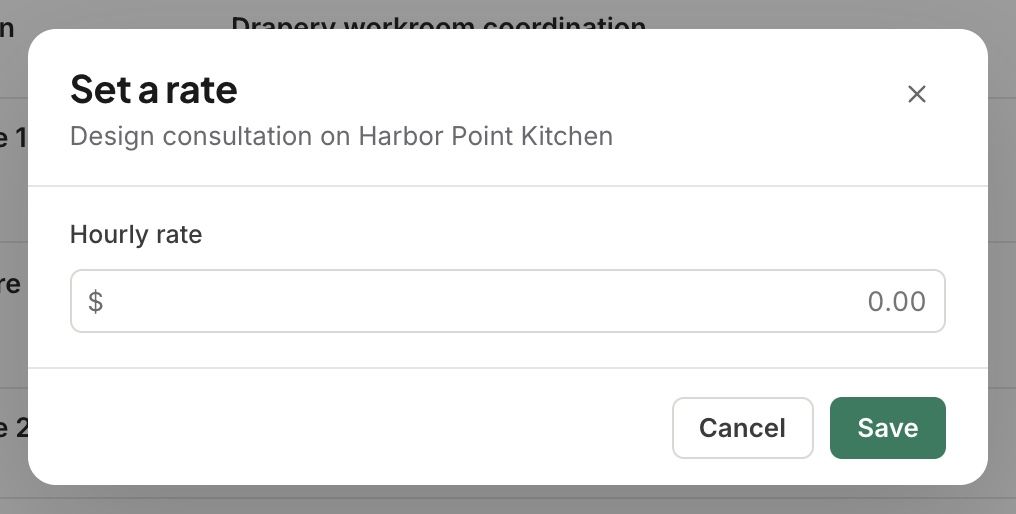
If there is no rate, the item says No rate in amber, with Set a rate.
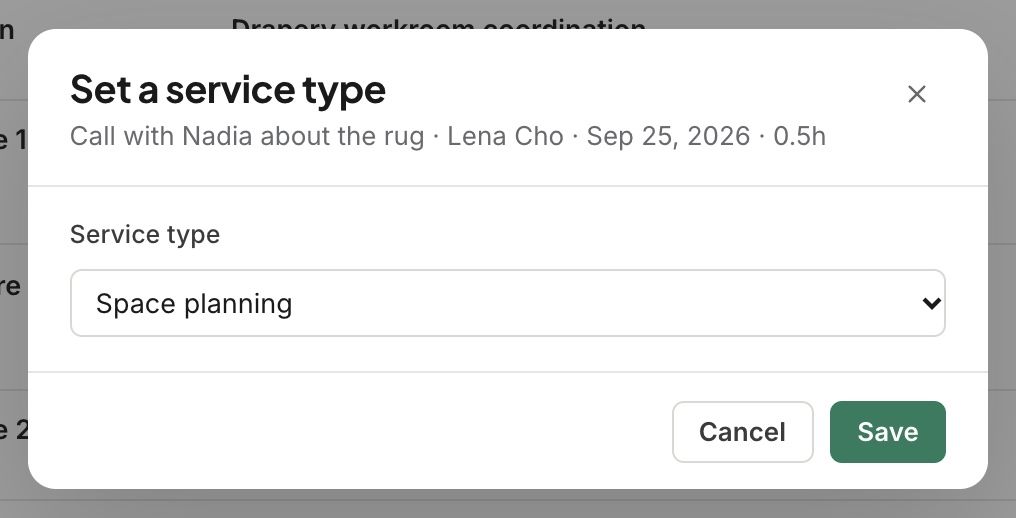
Time with no service type says so, with Set a service type. Pick one and the rate fills in.

Snooze
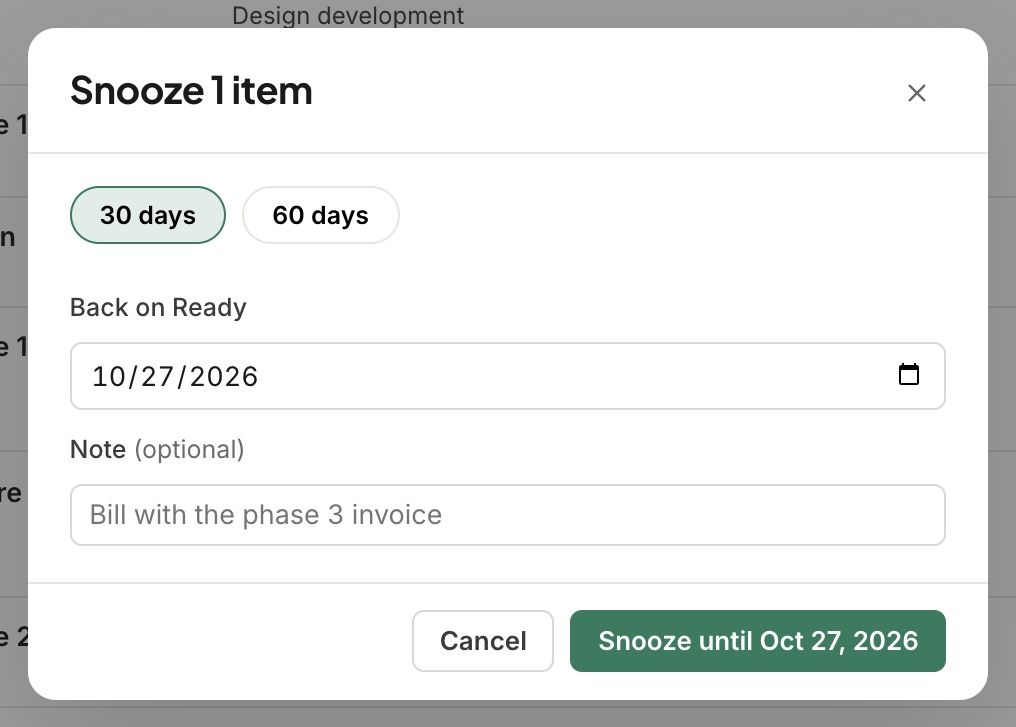
Not ready to bill it? Tick it and click Snooze: thirty or sixty days, or a date, with a note. It comes back to Ready on its own.
Write off
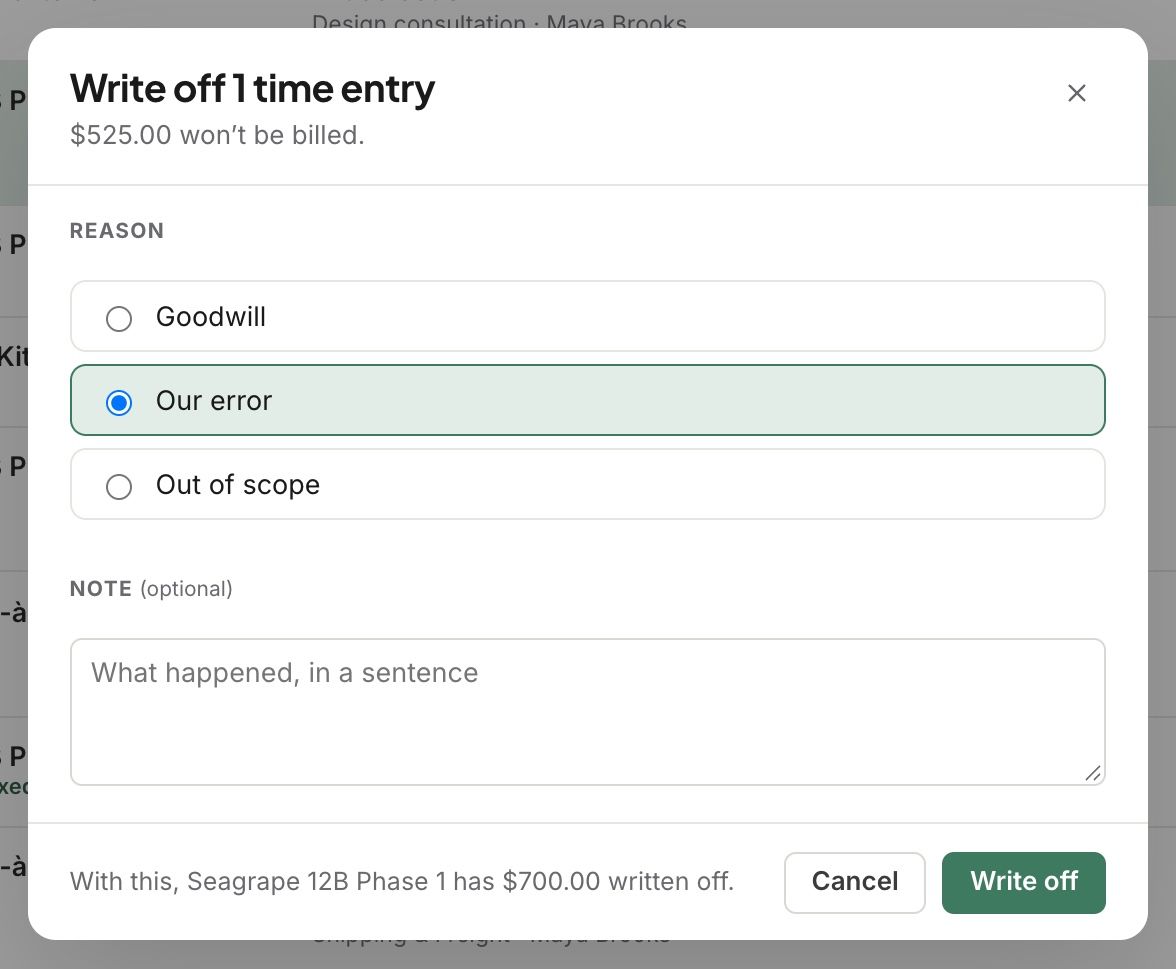
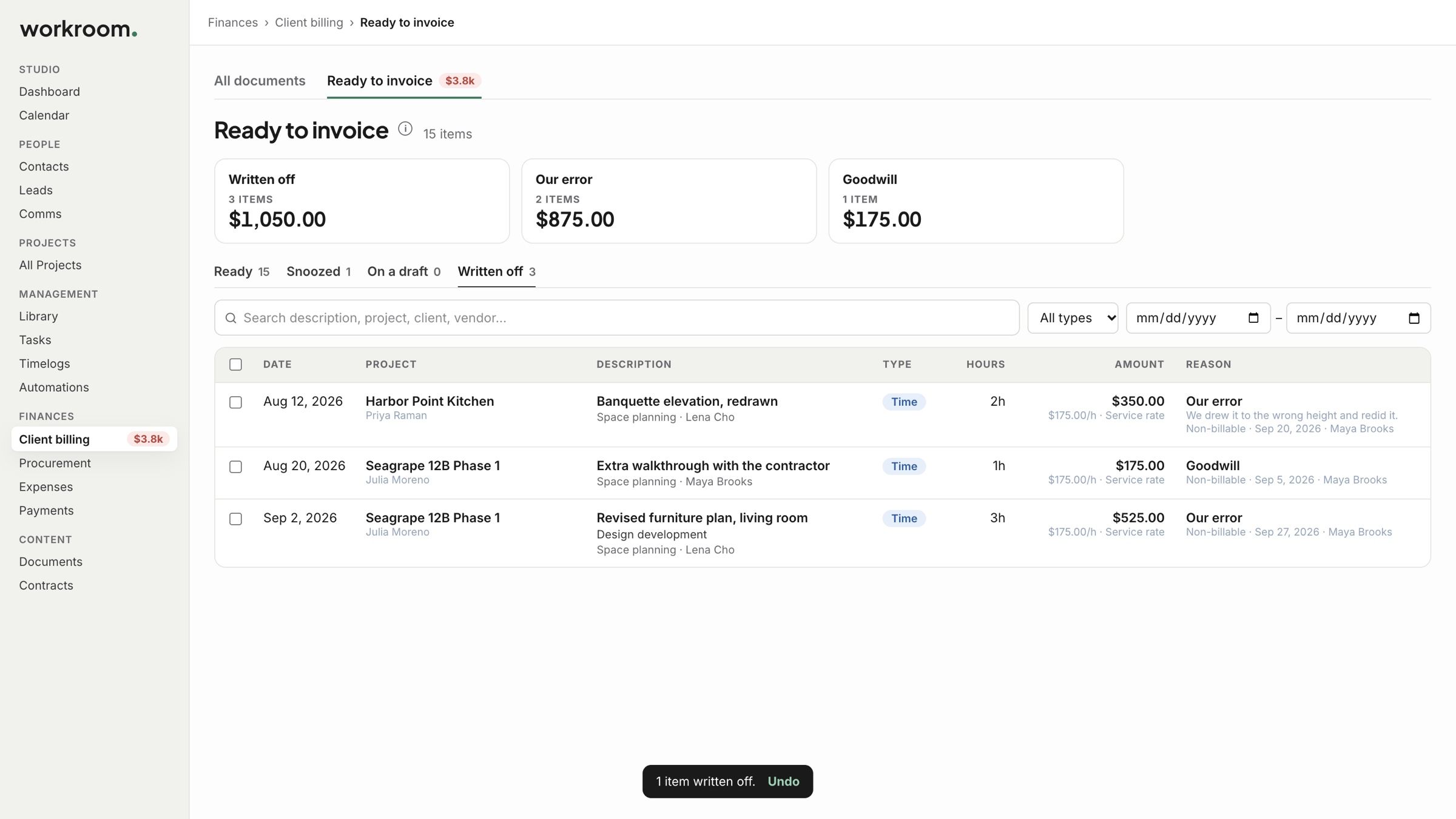
Won’t bill it? Tick it and click Write off. Choose a reason, like Goodwill, Our error or Out of scope, and add a note if you like. The dialog shows what the project has written off so far.
Changed your mind?
In the Written off view, tick the item and click Undo write-off. To pull something back from a draft invoice, take it off the draft.
Related articles
Was this helpful?
Still need help? Ask the team