How to send an invoice to a client
Email an invoice with a View & pay button, and what your client sees.
Written By Julia M.
Overview
Send an invoice by email from Workroom. Your client gets a View & pay button that opens the invoice, where they can pay online.
Watch it: the Finances lesson in Campus, step 4, “Invoice and get paid”, chapter 3, “Paid online” (starts at 0:40).
Before you start
Check it with Preview as client at the top of the invoice.
Check the payment schedule and the terms.
Steps
Open the invoice and click Save and send. If your studio needs an owner’s sign-off first, the button reads Submit for sign-off.

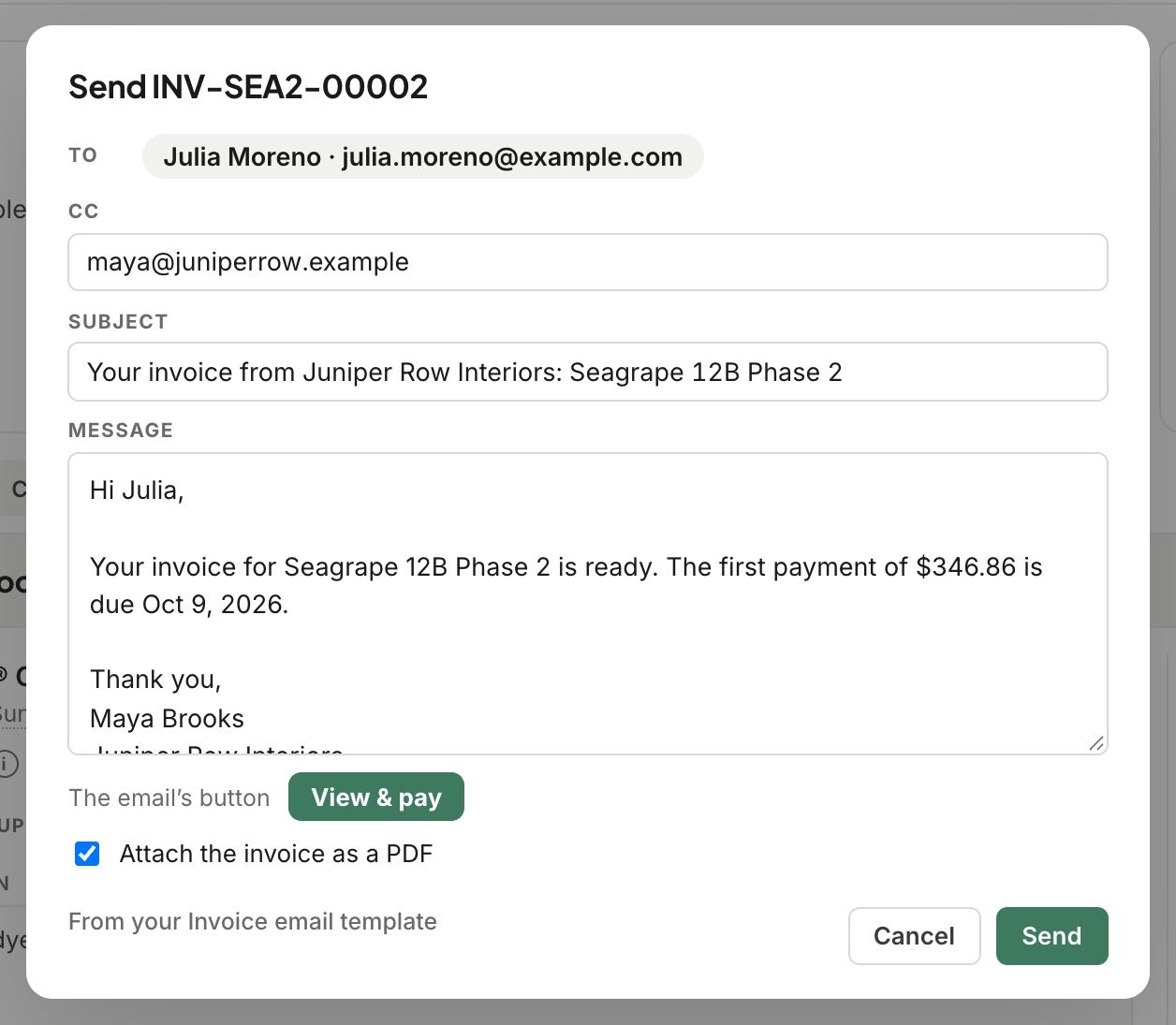
Check To, add anyone in CC, and edit the Subject and Message. The message starts from your Invoice email template.
Leave Attach the invoice as a PDF ticked to attach the PDF.
Click Send.
What happens next
The status moves to Sent, then Viewed with the time your client opened it.
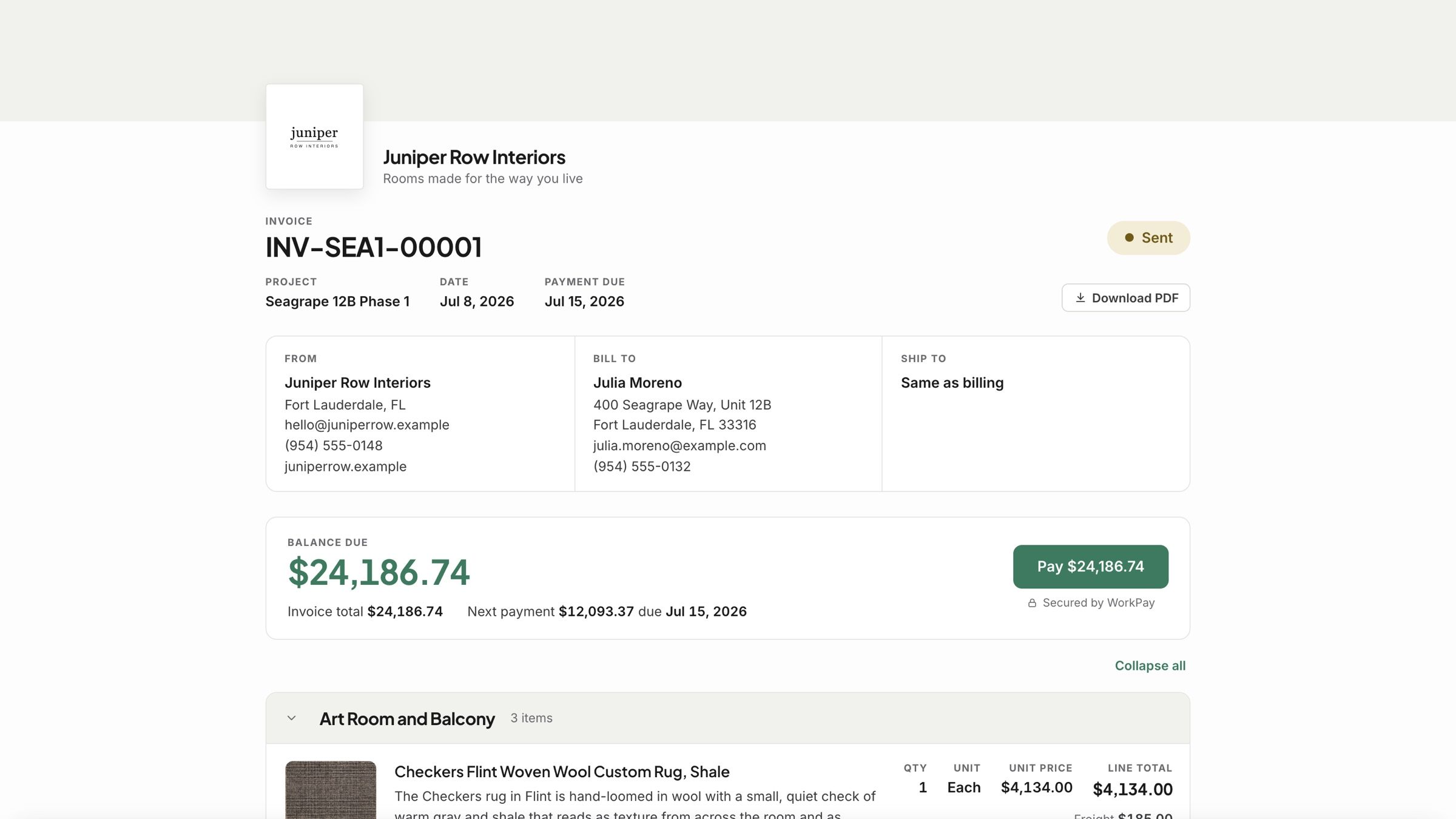
Your client sees the balance due, the next payment and when it is due, with a Pay button.
A payment they make online shows at once on the invoice, its PDF and your list.
Good to know
Once an invoice has been sent, the button reads Send again.
Related articles
Was this helpful?
Still need help? Ask the team