Using the side panel
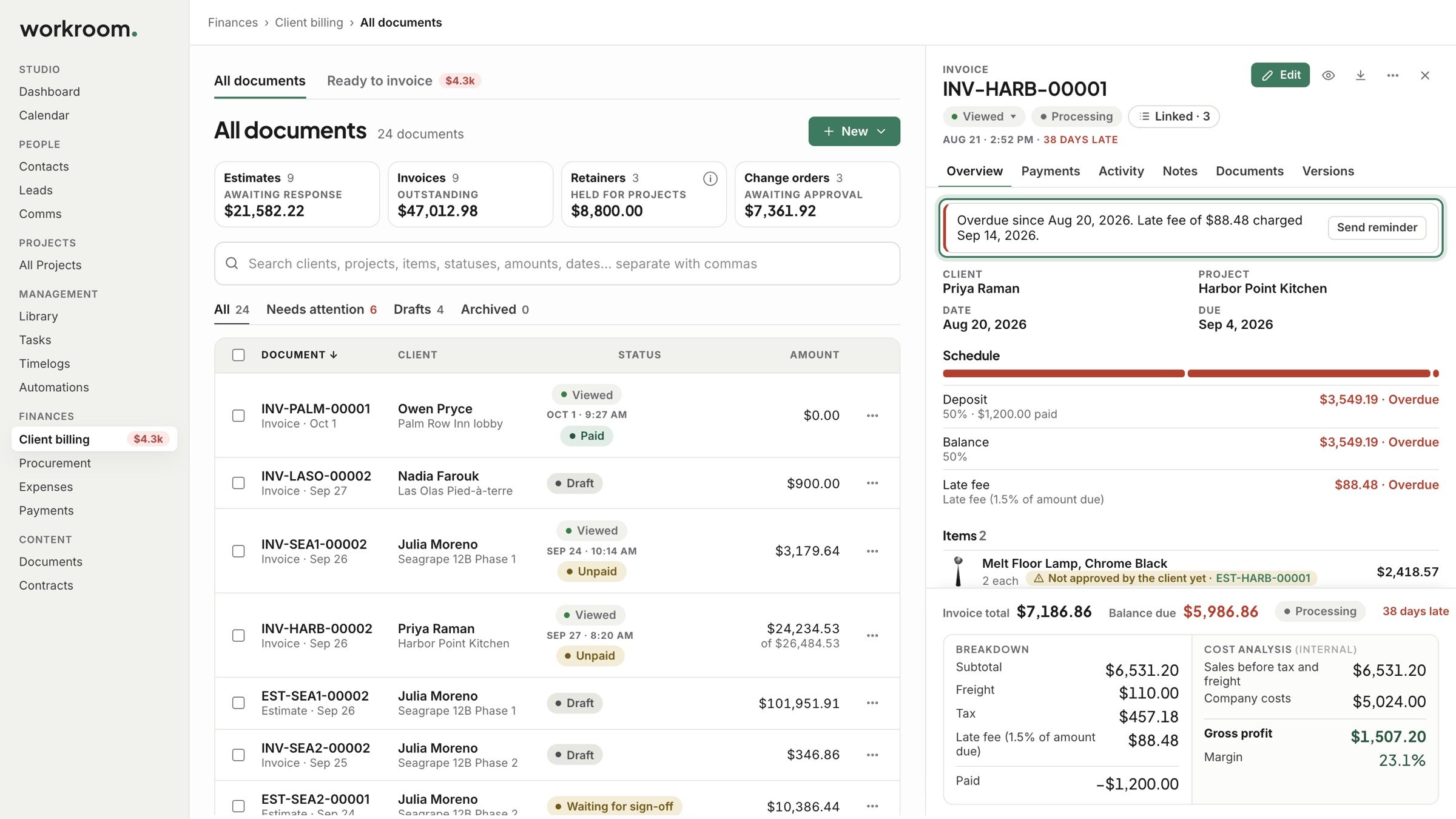
Open any document beside the list: its next step, its tabs, and the totals pinned at the bottom.
Written By Timothy Murenzi
Overview
Click any row in Finances › Client billing › All documents and the side panel opens beside the list. Move up and down the list with the arrow keys.
Watch it: the Finances lesson in Campus, step 1, “Find your way around Finances”, chapter 6, “The side panel” (starts at 2:35).
The next step
The top line is the next step, with a button to take it, like sending a reminder for an overdue invoice.
The tabs
Overview: the client, project, dates, schedule and items.
Payments: what has been paid, with Record payment.
Activity: who did what and when. It can’t be edited.
Notes: notes for your team, never shown to your client.
Documents: files attached to it.
Versions: earlier saves, to compare.

The footer
The total and what is left stay pinned at the bottom of every tab. Open it for the breakdown, and your cost analysis, which only your team sees.

Along the top
Edit opens the editor. The eye shows what your client sees, the arrow downloads the PDF, and ••• has more.
Click the status to change it, and Linked to see the documents made from this one.
Related articles
Was this helpful?
Still need help? Ask the team