Sending a purchase order, and sign-off
Check what your vendor will see, send the order, and how sign-off works for bigger orders.
Written By Julia M.
Overview
Check a purchase order the way your vendor will see it, then send it. Your studio can ask for a sign-off on bigger orders.
Watch it: the Finances lesson in Campus, step 6, “Order and track”, chapter 2, “Sending and sign-off” (starts at 0:27).
Choose what your vendor sees
Open the draft in Finances › Procurement › Purchase orders. Preview as vendor shows exactly what they will get. The arrow beside it chooses whether they see product images, descriptions, specifications, prices, your note and attachments.

Send it
Under your studio’s limit, click Save and send.
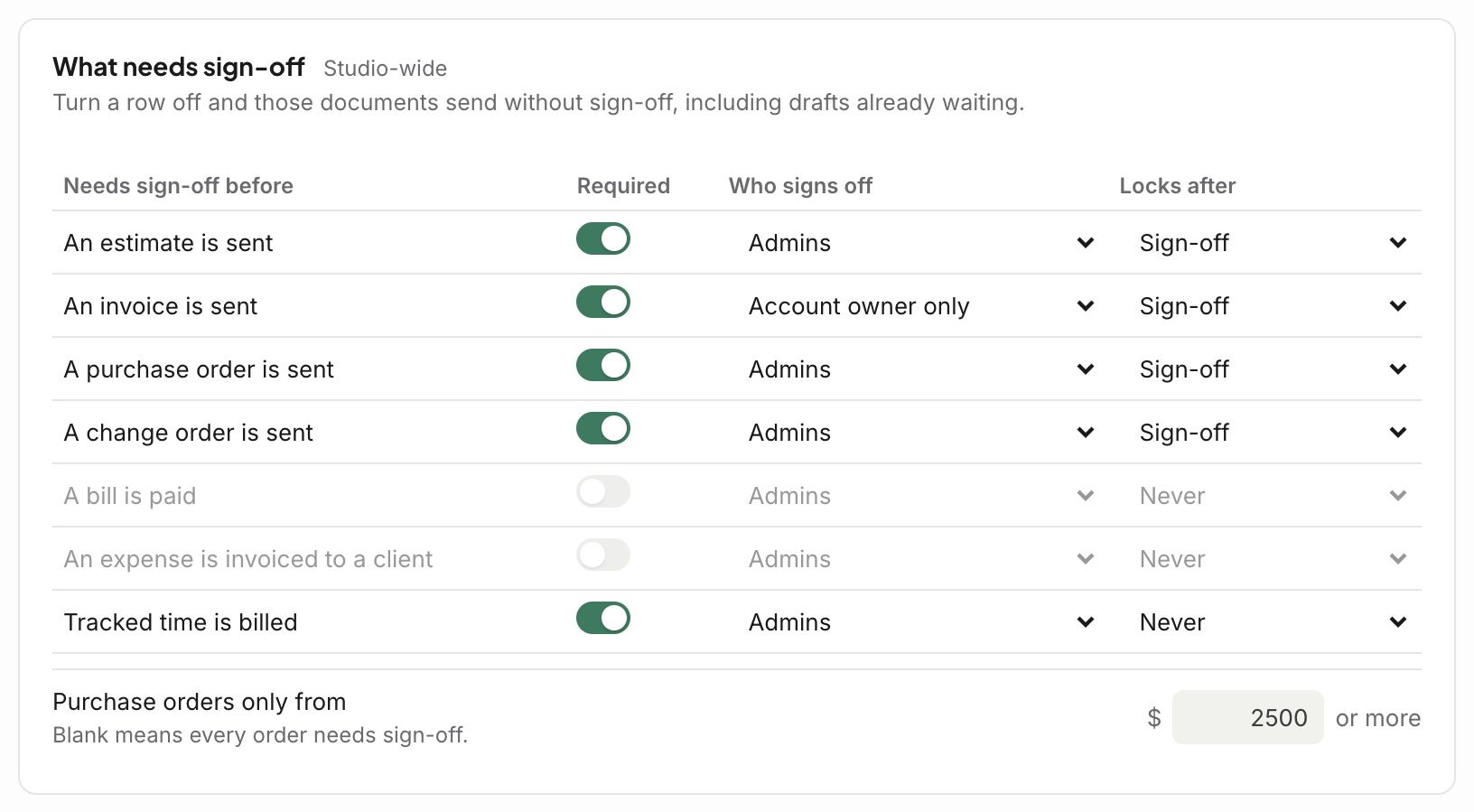
Over it, click Submit for sign-off. An owner or admin signs it off and sends it. While it waits, you can Take it back; they can Make a change, Send back, or Sign off and send.

Set the sign-off rule
In Settings › Studio › Sign-off and approvals, turn on A purchase order is sent and choose who signs off. Purchase orders only from sets the amount, like $2,500 or more. Leave it blank and every order needs sign-off.
Related articles
Was this helpful?
Still need help? Ask the team