Logging an expense
Add an expense, let Walter read the receipt, choose the project and who pays it back, and send it for sign-off.
Written By Julia M.
Overview
Log what your studio spends in Finances › Expenses. Drop in the receipt, and Walter reads it for you.
Watch it: the Finances lesson in Campus, step 5, “Time and expenses”, chapter 4, “Log an expense” (starts at 1:20).
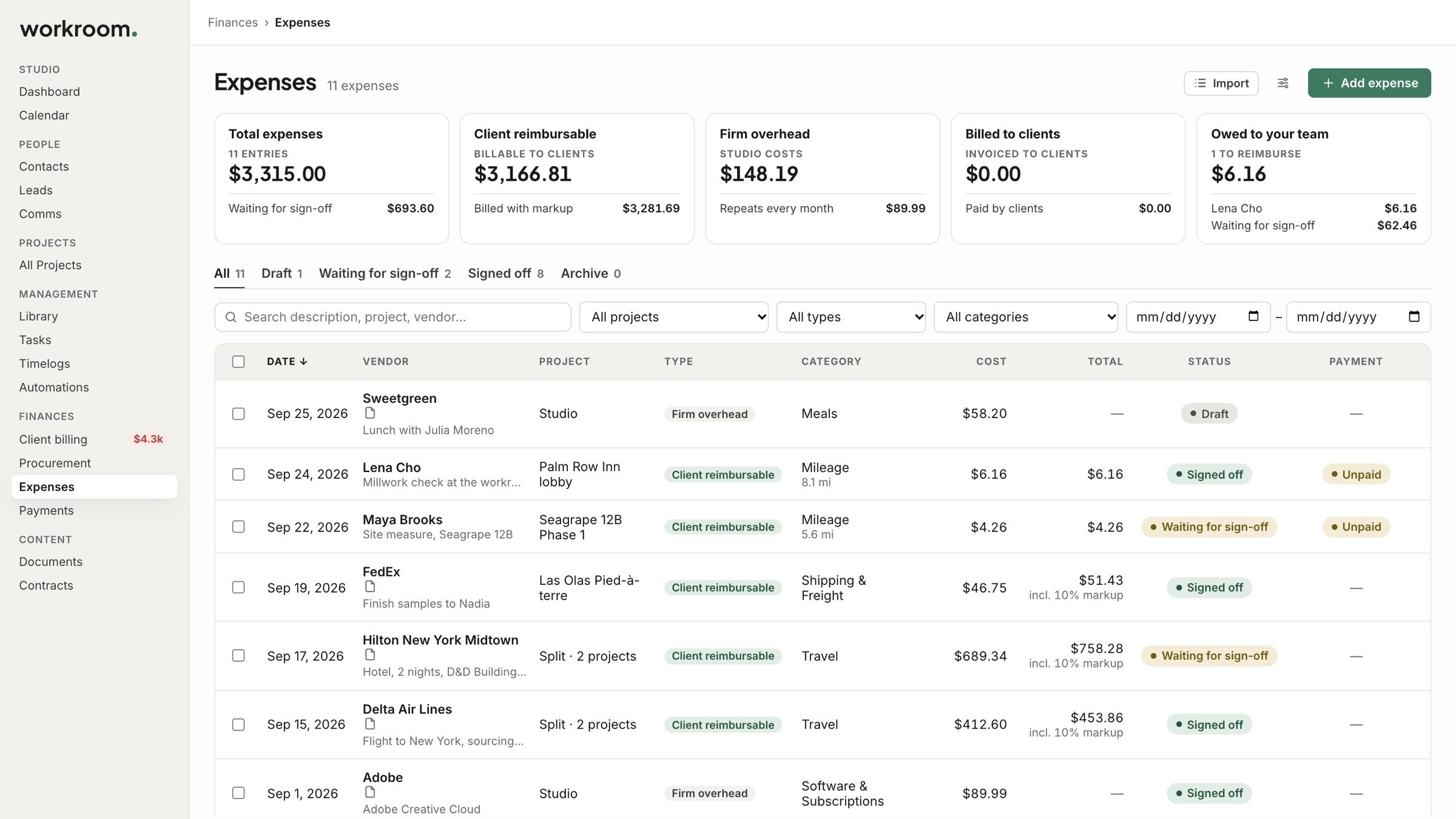
The Expenses page
Tiles add up your expenses: what clients pay back, firm overhead, what has been billed to clients, and what you owe your team.
Steps
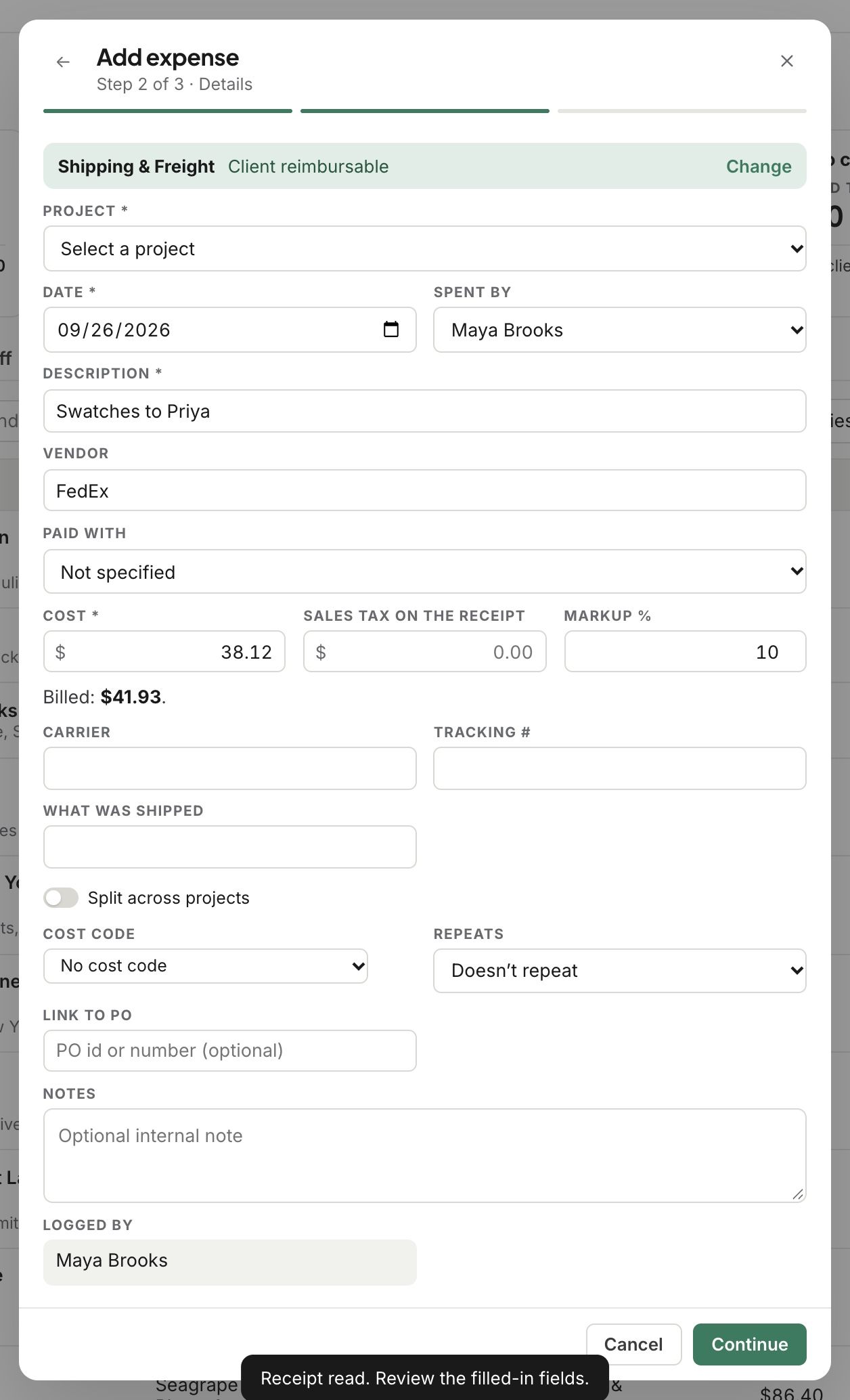
Click Add expense and drop in the receipt. Walter reads it and fills in the vendor, amount, tax, category and date.
Check the category. Click Change to pick another.
Pick the project, and whether your client pays it back. Check the description, who spent it, what it was paid with, the cost and the markup. Billed shows what your client will pay.
Add a cost code, set it to repeat, or link it to a purchase order if you like. Then click Continue.
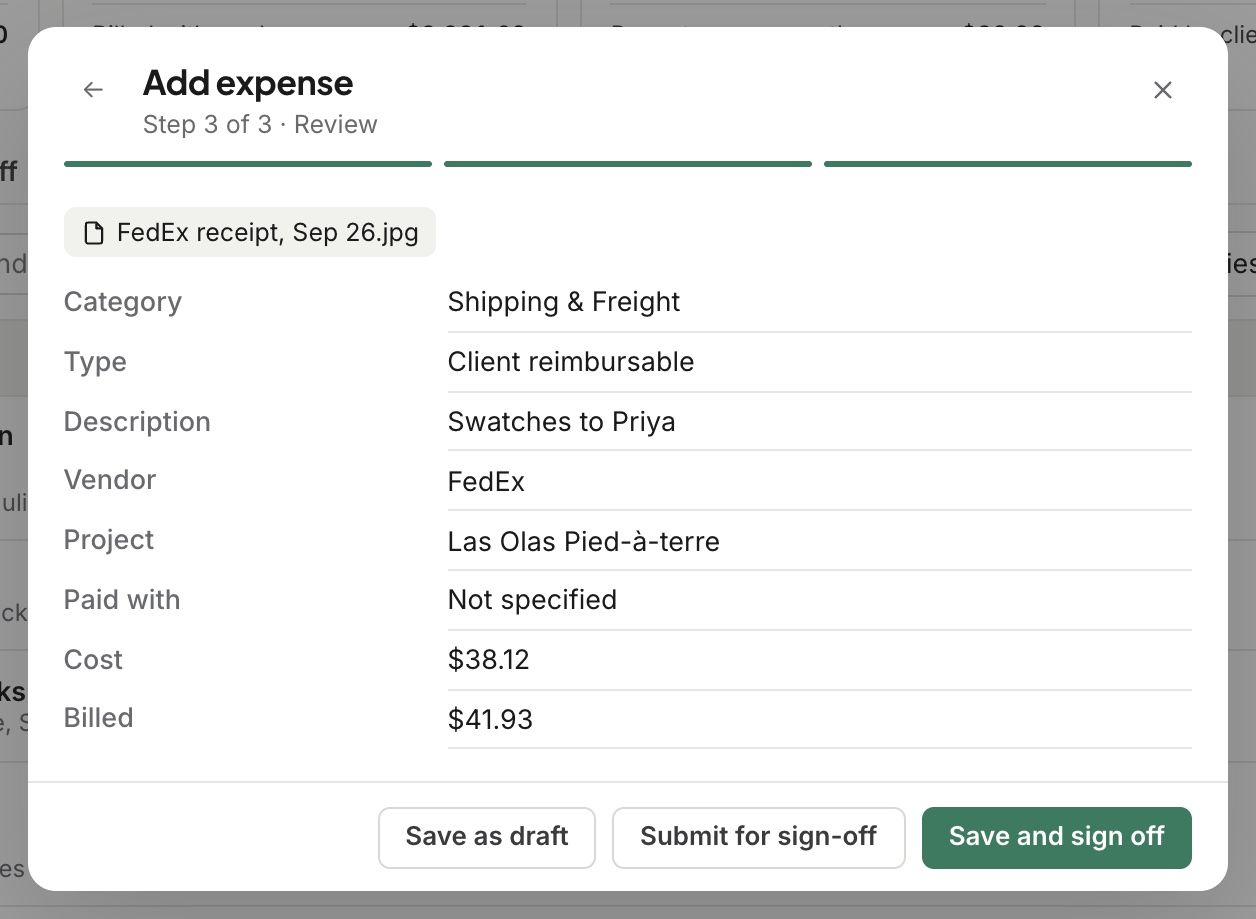
Check the review. Then Save as draft, Submit for sign-off, or Save and sign off yourself.
Good to know
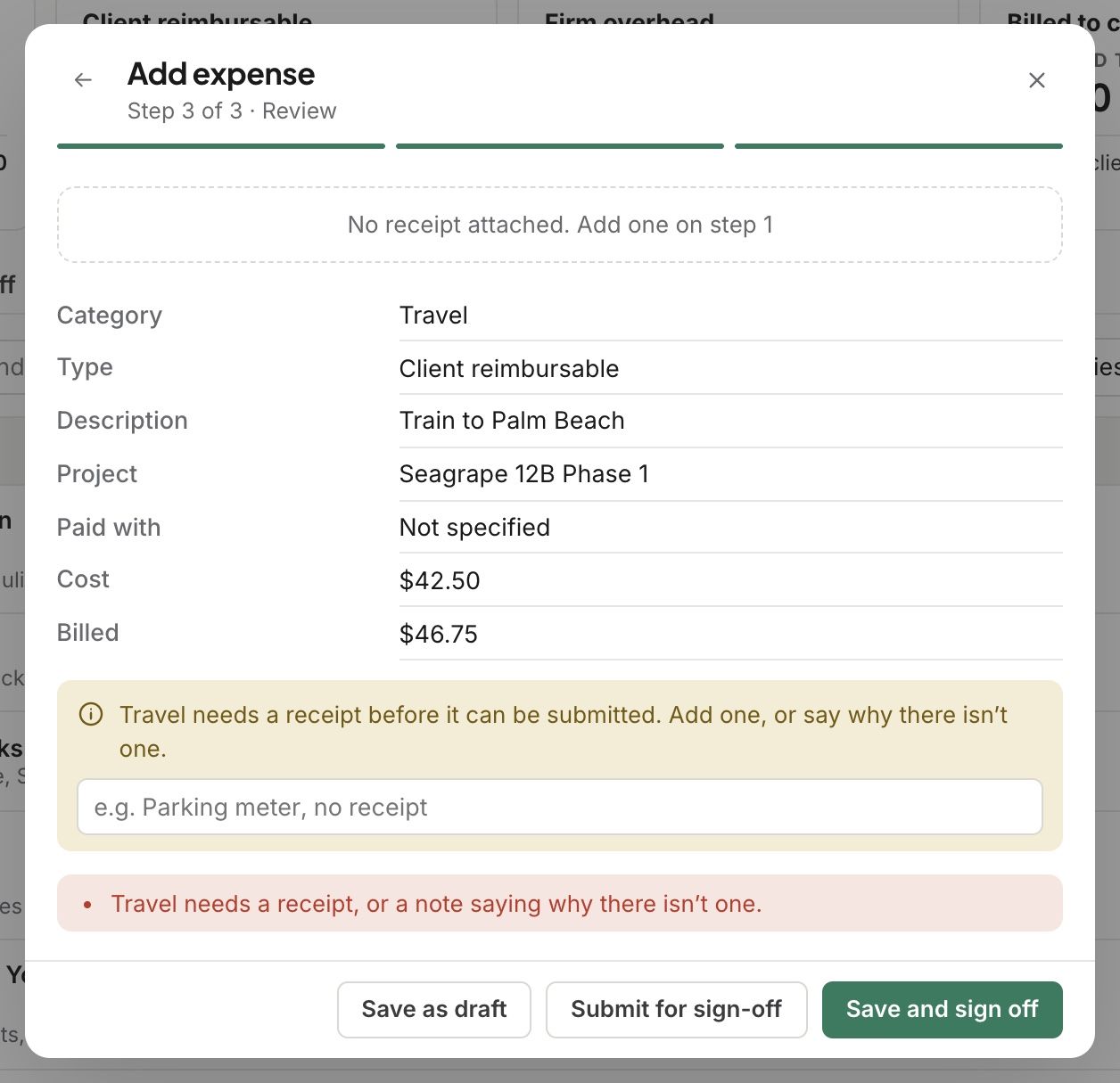
Travel needs a receipt, or a note saying why there isn’t one.
A signed-off expense your client pays back goes to Ready to invoice.
Related articles
Was this helpful?
Still need help? Ask the team