Your studio’s look on client pages and PDFs
Your logos, where each one is used, and how every PDF’s header, footer and terms look.
Written By Timothy Murenzi
Overview
Settings › Studio › Branding sets your logo everywhere it appears, and how every PDF looks: estimates, invoices, purchase orders, change orders, contracts, spec sets and reports.
Watch it: the Settings lesson in Campus, step 3, “Your studio and brand”.
Logo
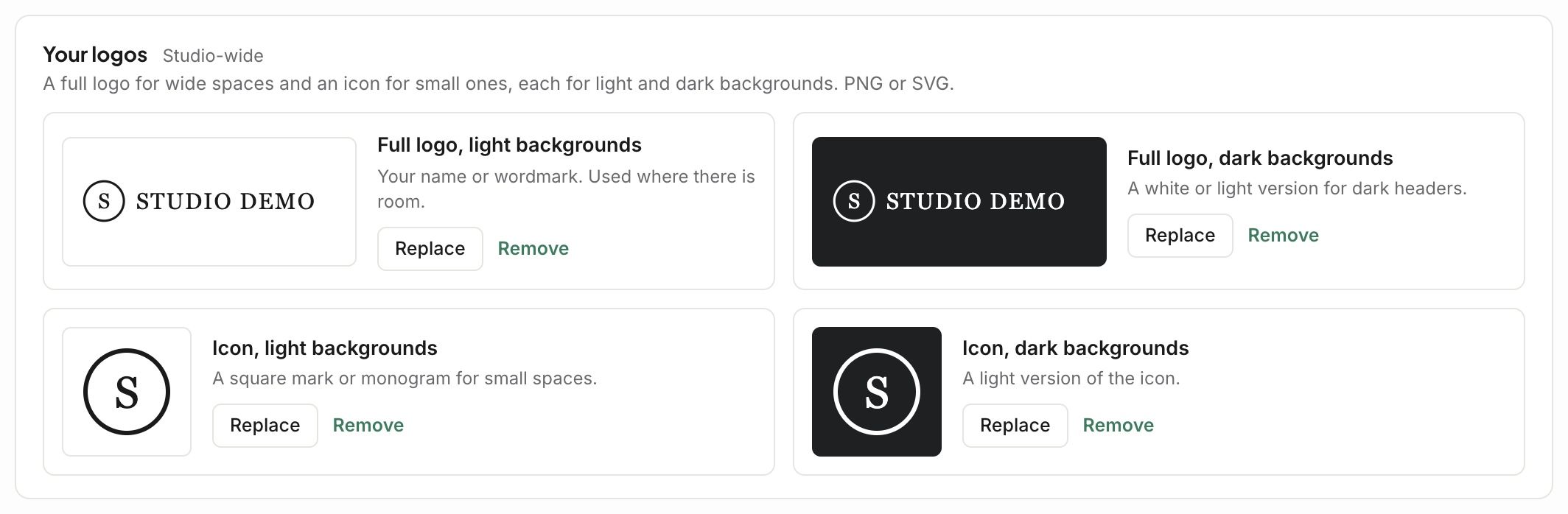
Your logos: a full logo for wide spaces and an icon for small ones, each for light and dark backgrounds.
Where each one is used: pick the logo and its height for the app menu, the client portal, PDFs, emails, contracts, the spec set cover, the phone app and the browser tab.
PDFs
Header: logo only, logo and studio name, or studio name only, with a tagline and an optional banner across the top.
Footer: a footer note on every page, and a thank-you message on estimates and invoices if you like.
Terms: with the totals, or on their own page.
Saving PDFs: save a copy in Documents each time a PDF is downloaded.
A preview at the top shows each document type as you change it.

Good to know
White label, on the White label tab, removes Workroom’s name everywhere your clients look.
Related articles
Was this helpful?
Still need help? Ask the team