How your client reviews and approves an estimate
What your client sees, how they approve, revise or decline each item and sign, and what you do after they answer.
Written By Julia M.
Overview
Your client opens the estimate from the View & approve button in your email. They answer each item, sign for what they approve, and send their response back to you.
Watch it: the Finances lesson in Campus, step 3, “Send it and get an answer”, chapter 5, “Your client answers” (starts at 1:30) and chapter 6, “After the answer” (starts at 1:54).
What your client sees
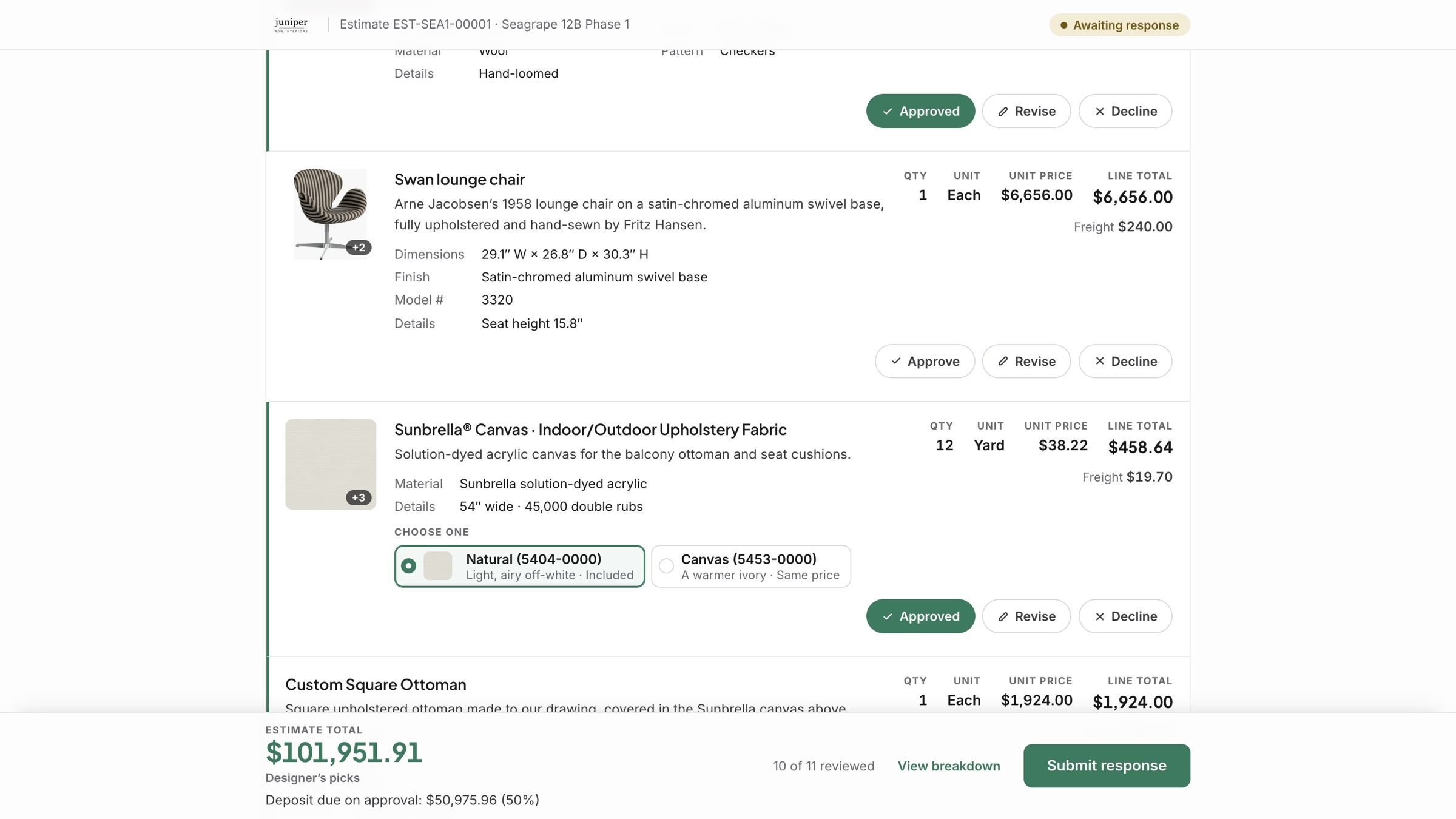
Your studio’s header, the estimate details, and From, Bill to and Ship to.
A review bar counting what they have answered.
Each section and item, with the pricing you chose to show, and any choices you gave them.
The total and the deposit due on approval at the bottom, with Submit response.
How they answer
Approve, Revise or Decline each item. Depending on the approval mode, they can also answer a whole section or the whole estimate.
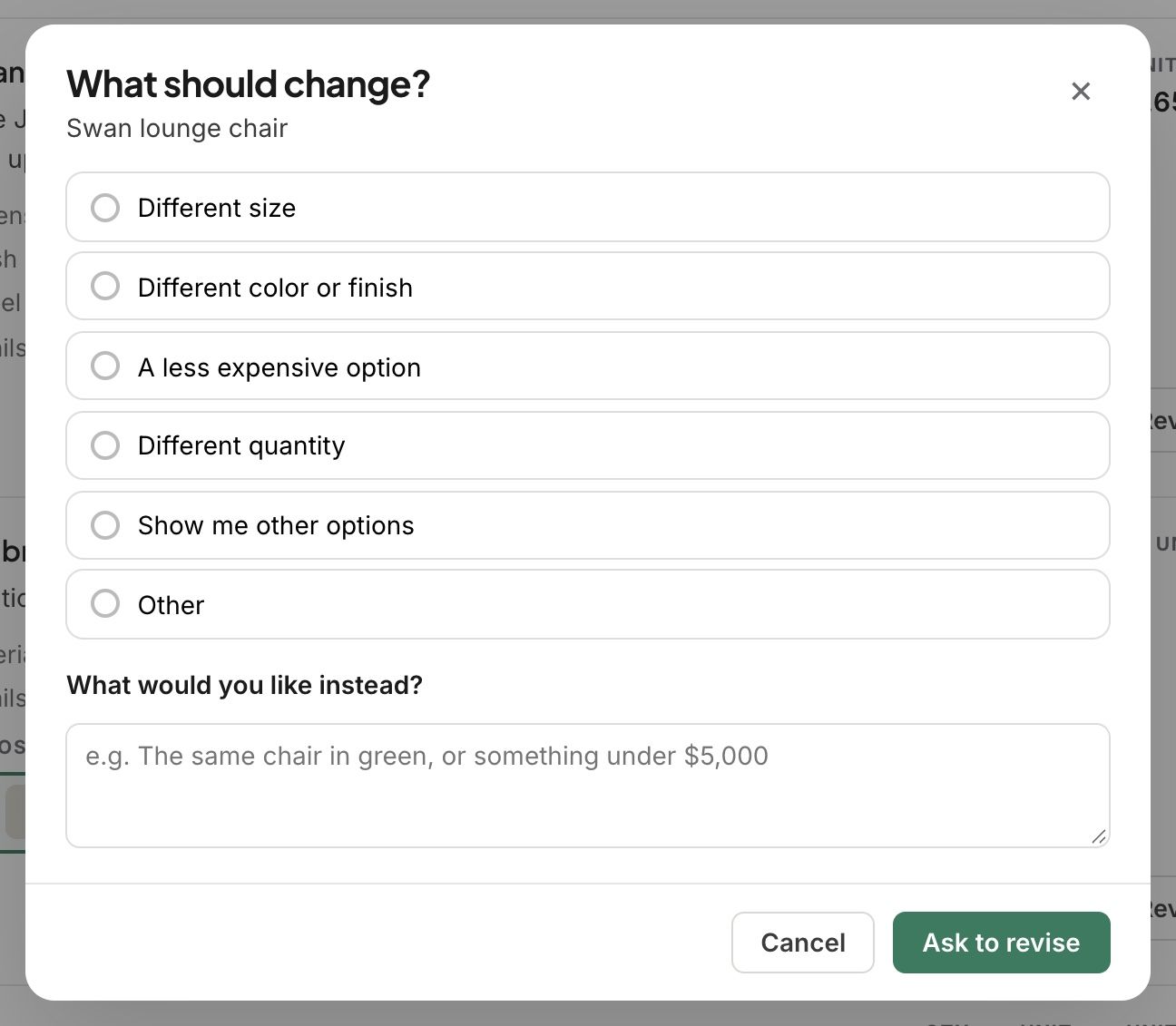
Revise and Decline always ask why, from your studio’s own reasons or in their own words.
Signing
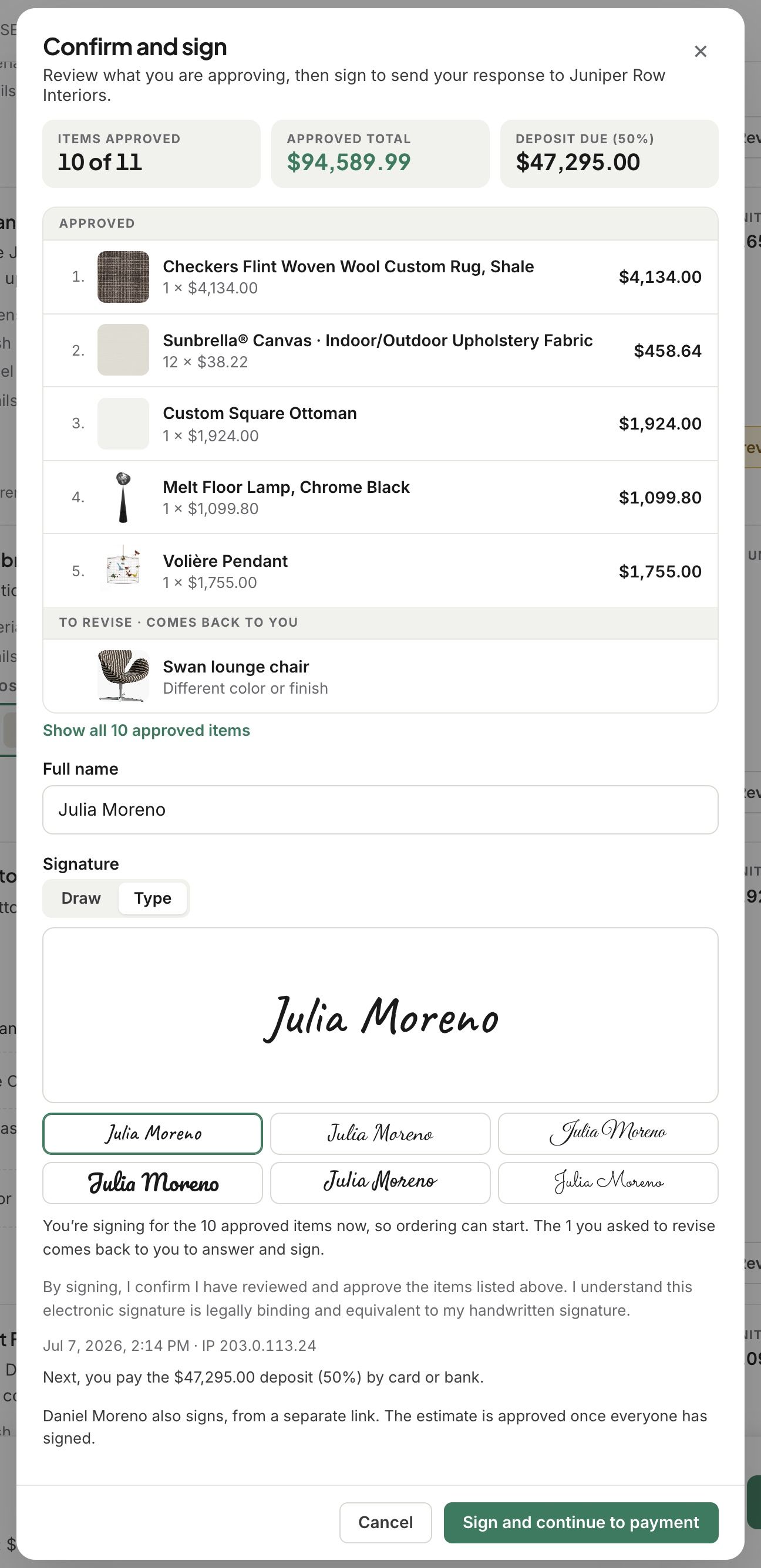
Submit response opens Confirm and sign: what they are approving, their full name, and a signature they draw or type.
They sign for what is approved straight away, so ordering can start while the rest comes back to you.
A second signer gets their own link, and signs the same answers.
After the answer
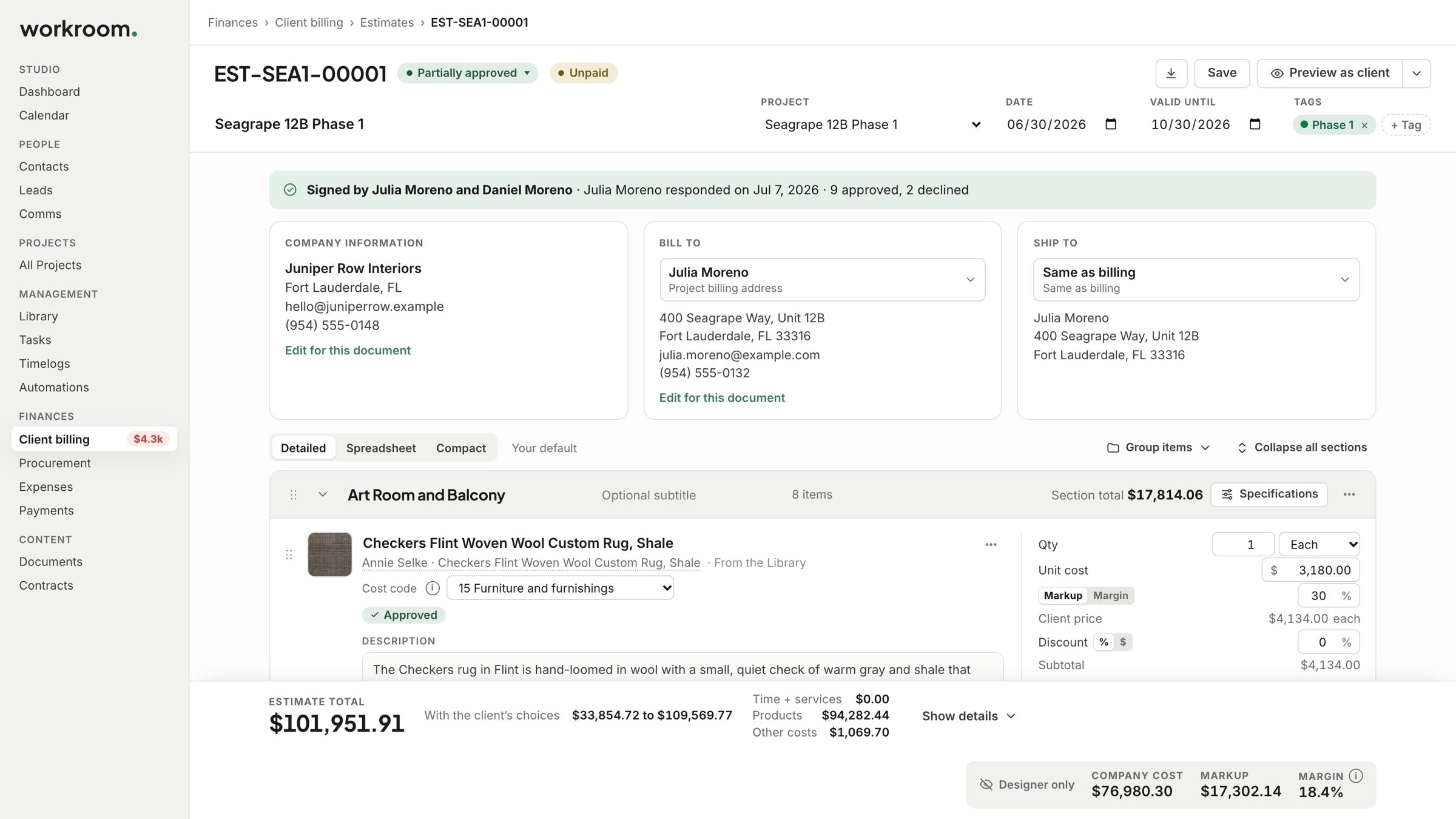
You see every answer and reason in the editor. Revise those items and send them back, and only they reopen.
Did your client answer by phone? Click the estimate’s status and choose Record client’s response. Need them to choose again? Reopen for client.
Send a reminder to whoever still has to act, or Set a reminder for a date.
Related articles
Was this helpful?
Still need help? Ask the team