Retainers
What a retainer is, where to find it, its types, and the four figures that show where the money is.
Written By Timothy Murenzi
Overview
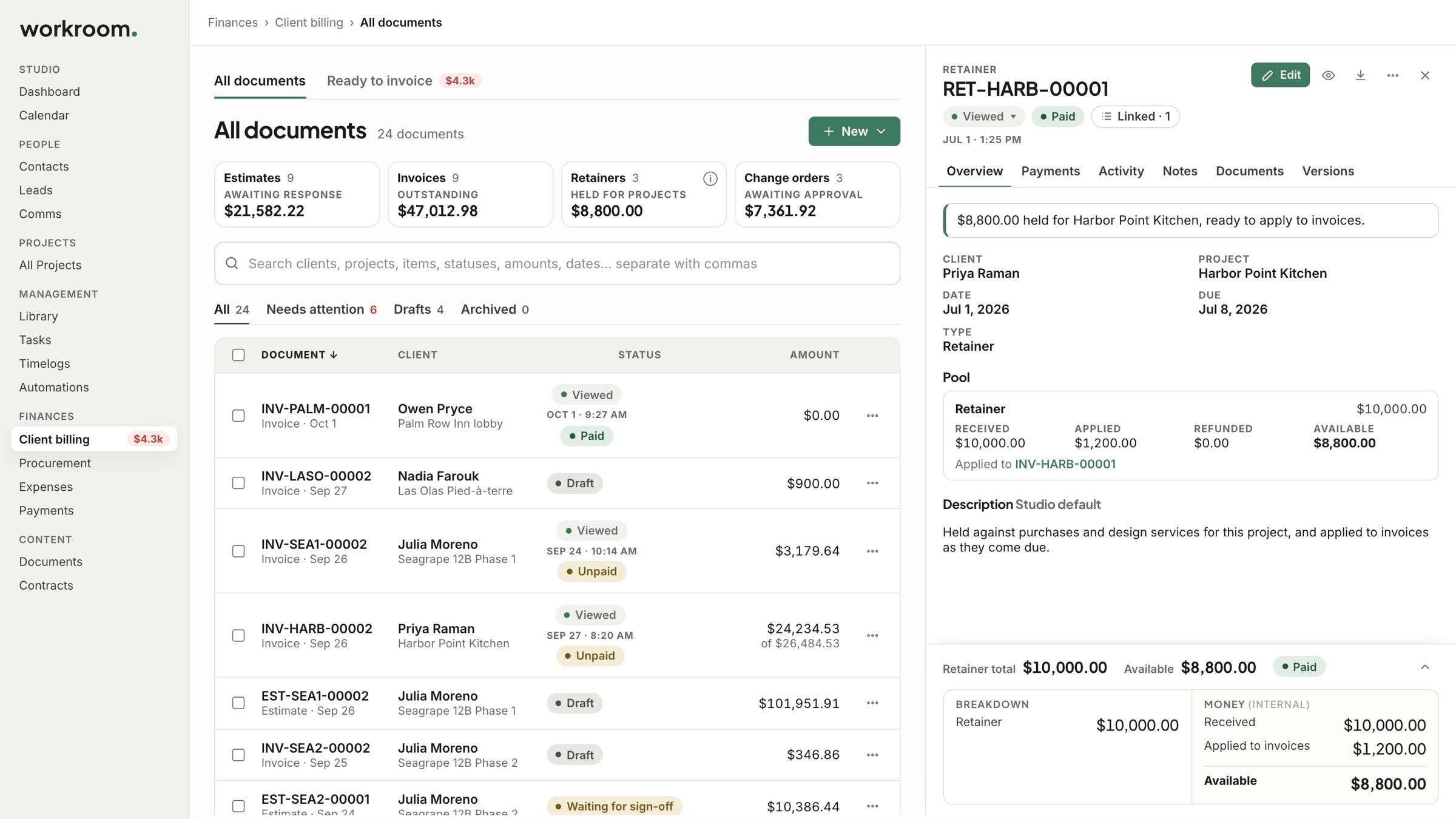
A retainer collects money up front, for products, services or both. Once it is received, you apply it to invoices as they come due. Each retainer belongs to one project and one client, and is numbered for its project, like RET-HARB-00001.
Watch it: the Finances lesson in Campus, step 4, “Invoice and get paid”, chapter 7, “Retainers” (starts at 2:36).
Where to find retainers
Go to Finances › Client billing › All documents. The Retainers tile shows what is held for projects. Click the tile to list only retainers, and click a retainer to open its side panel.
Retainer types
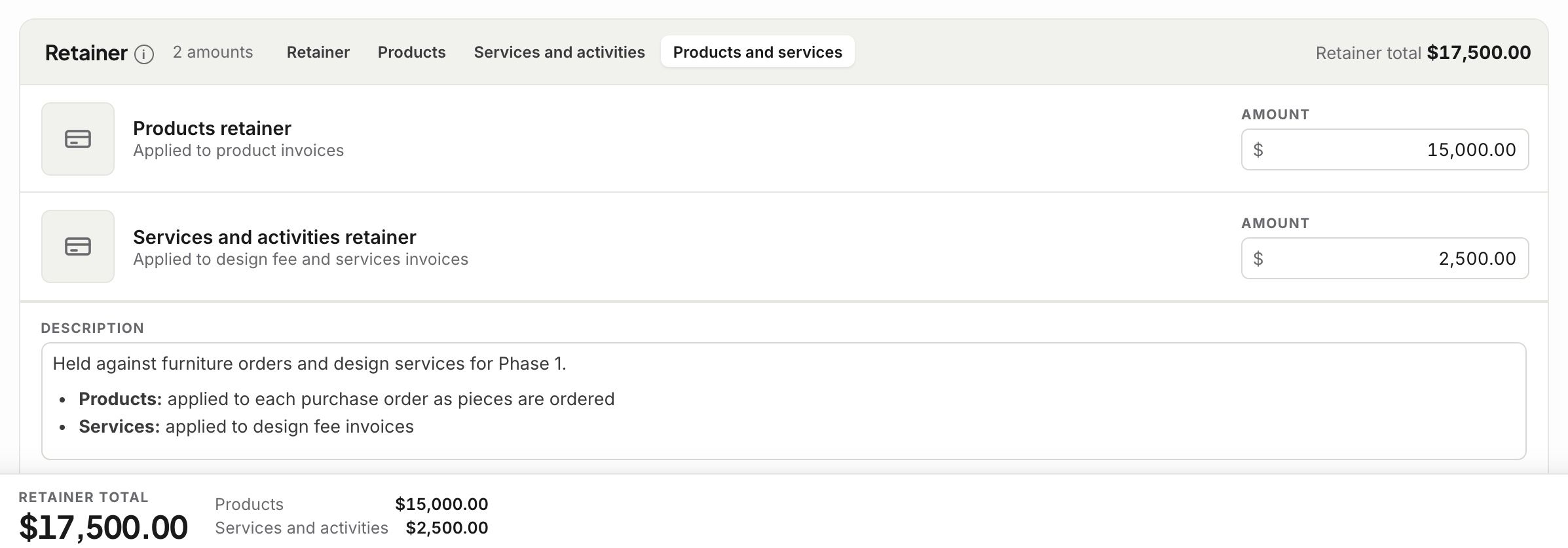
In the retainer’s Retainer section, choose how it is split:
Retainer: one amount.
Products: applied to product invoices.
Services and activities: applied to design fee and services invoices.
Products and services: two amounts, one for each.
The four figures
Received: what your client has paid.
Applied: what has gone to invoices.
Refunded: what went back to your client.
Available: what is left to apply.
You see them in the side panel’s Pool and on its Payments tab.
Good to know
A retainer can only be applied to invoices on its own project.
Only money you have received can be applied.
A card fee your client paid sits on its own line, never in the retainer.
Once a retainer is created, its client can’t be changed.
Your studio’s default description is in Settings › Studio › Finances › Getting paid › Retainers.
Related articles
Was this helpful?
Still need help? Ask the team