QuickBooks items and Other lines
Every line needs a QuickBooks item. Pick one for each category, service and other line, or let Workroom make one after it asks.
Written By Julia M.
Overview
Every line Workroom sends needs a QuickBooks item. On the Mapping tab, each product category, service and other line gets one. Until a row has an item, its lines wait, and the Sync Center lists them.
Watch it: QuickBooks basics for designers in Campus, chapter 3, “Items” (starts at 1:47).
Pick an item
Go to Settings › Integrations and apps › QuickBooks Online and click the Mapping tab.
Open Products, Service fees or Other lines.
For each row, pick an existing QuickBooks item. The row shows which accounts it posts to.
Click Done, then Save changes.
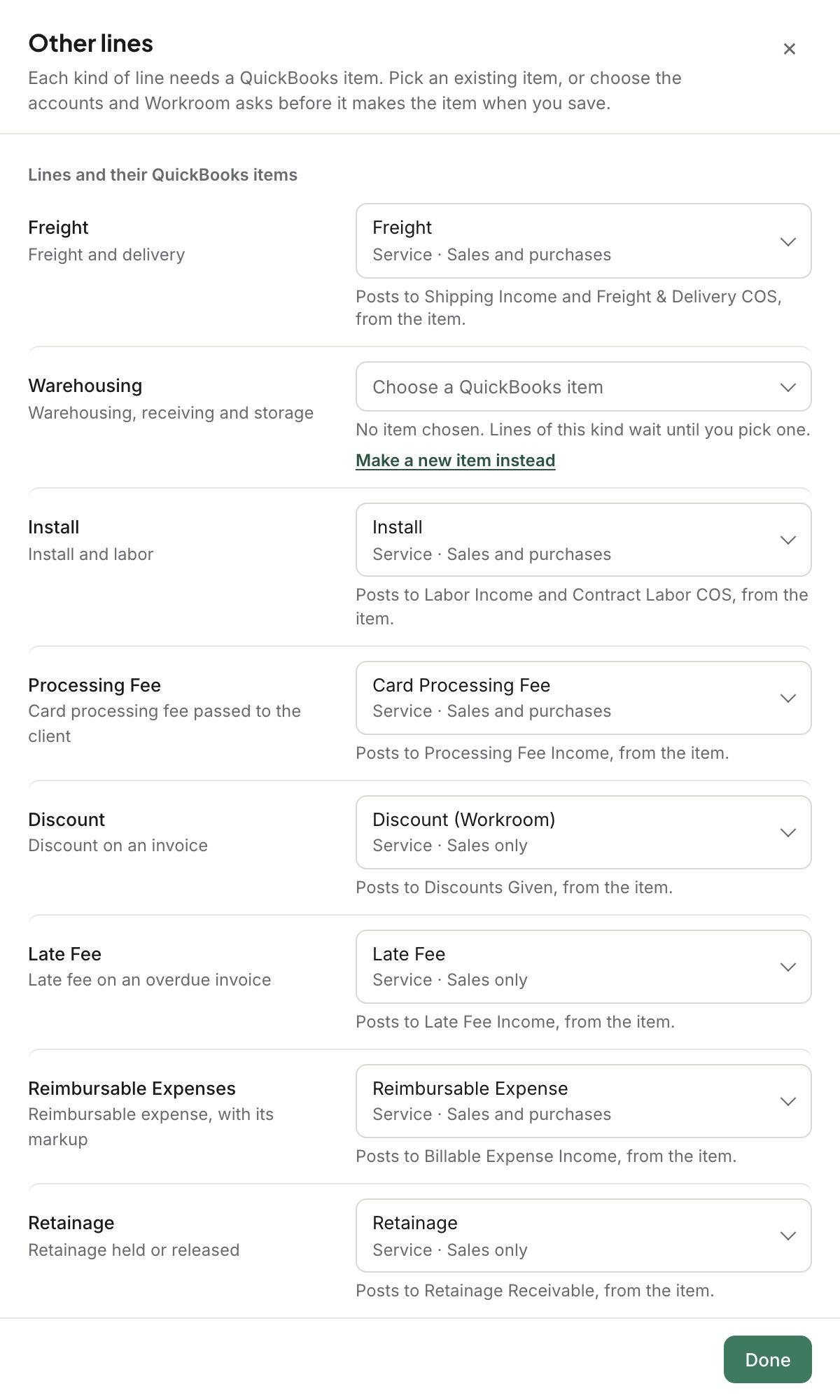
A subcategory can use Same as its parent, like Tables under Furniture.
What a row won’t take
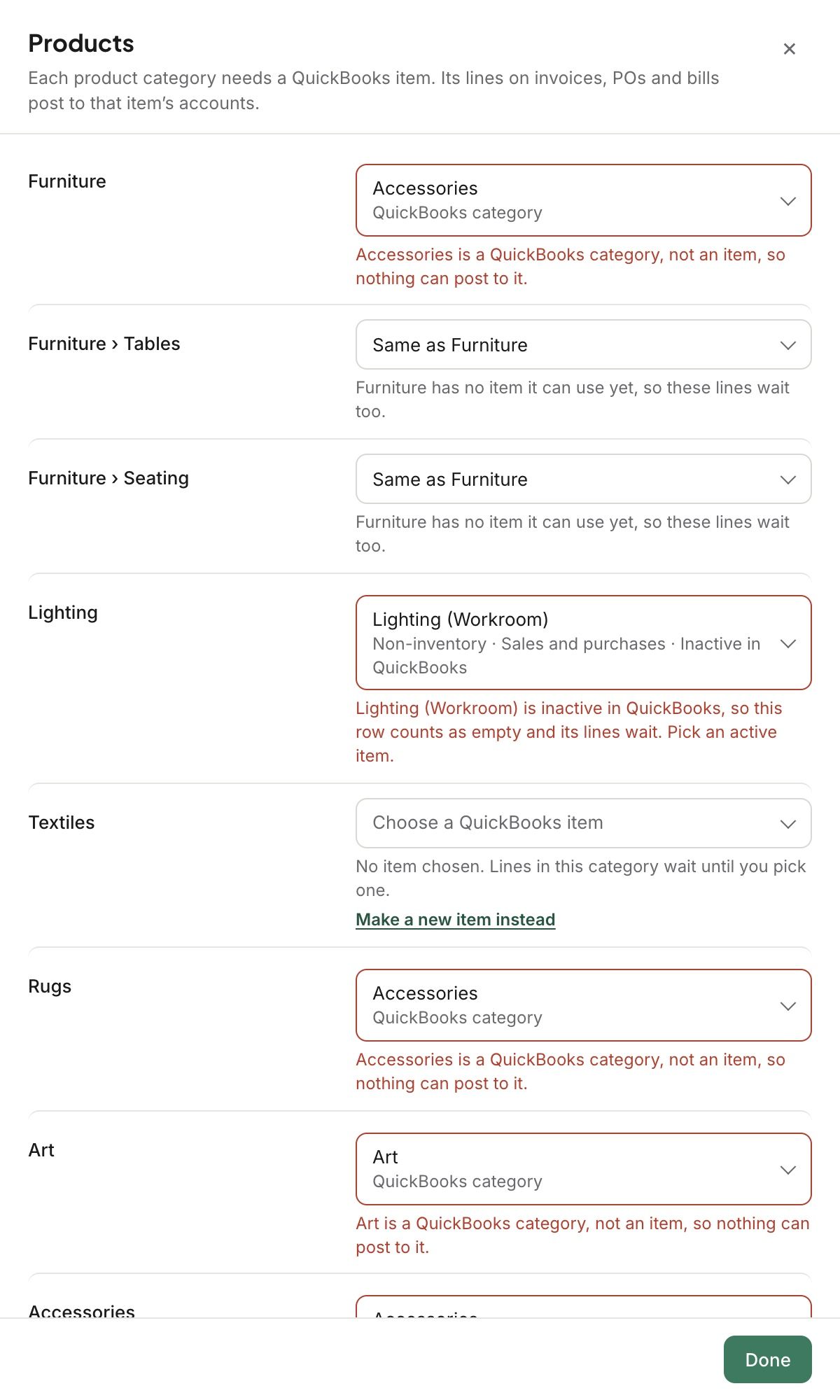
A QuickBooks category. It isn’t an item, so nothing can post to it.
An item that’s inactive in QuickBooks. The row counts as empty.
For purchase orders, an item with no expense account.
Make a new item
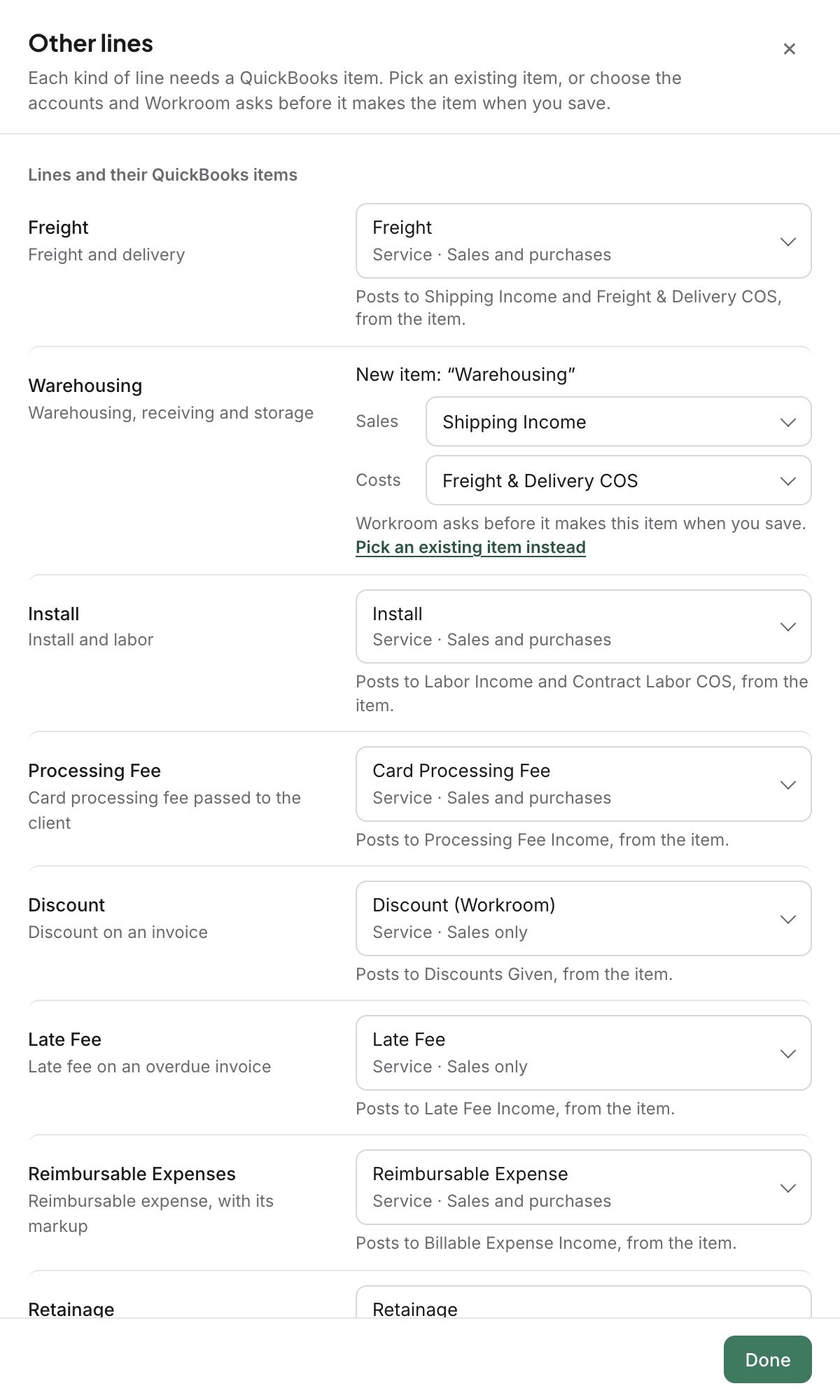
On the row, click Make a new item instead.
Choose its Sales account, and its Costs account for things you buy.
Click Save changes. Workroom lists the exact names it would create.
Click Create them. With Don’t create, your other changes still save, and those lines wait.
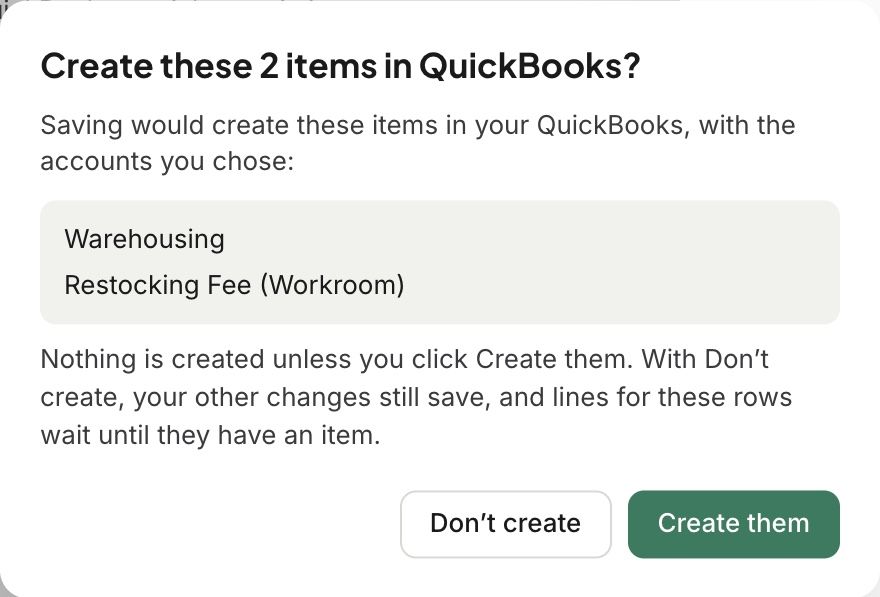
If the name is taken in QuickBooks, Workroom adds “(Workroom)” to it.
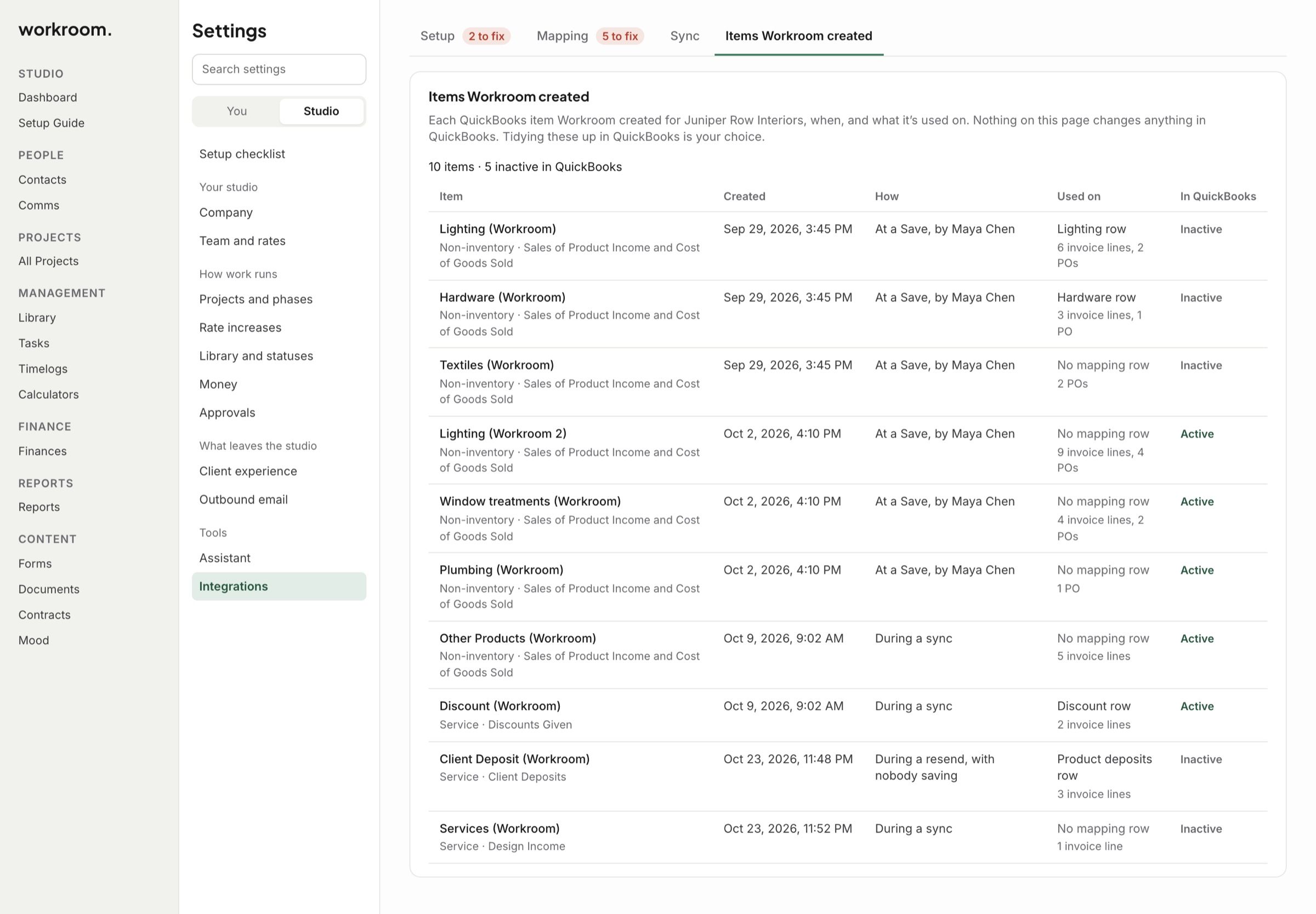
Items Workroom created
This tab lists every item Workroom has made in your QuickBooks: when, who saved it, what it’s used on, and whether it’s active. Nothing on this page changes QuickBooks. Tidying them up in QuickBooks is your choice.
Related articles
Was this helpful?
Still need help? Ask the team