QuickBooks Online and Workroom
What Workroom sends to QuickBooks Online, where the settings live, and what each tab is for.
Written By Timothy Murenzi
Overview
You run your projects in Workroom, and QuickBooks Online keeps your books. Once QuickBooks is connected, Workroom sends your invoices, bills, payments and more to it, so nobody types anything twice.
Workroom doesn’t choose for you. Every account, item and tax code is your choice, or your bookkeeper’s.
Watch it: QuickBooks basics for designers in Campus, chapter 1, “Workroom and QuickBooks” (starts at 0:09).
Where to find it
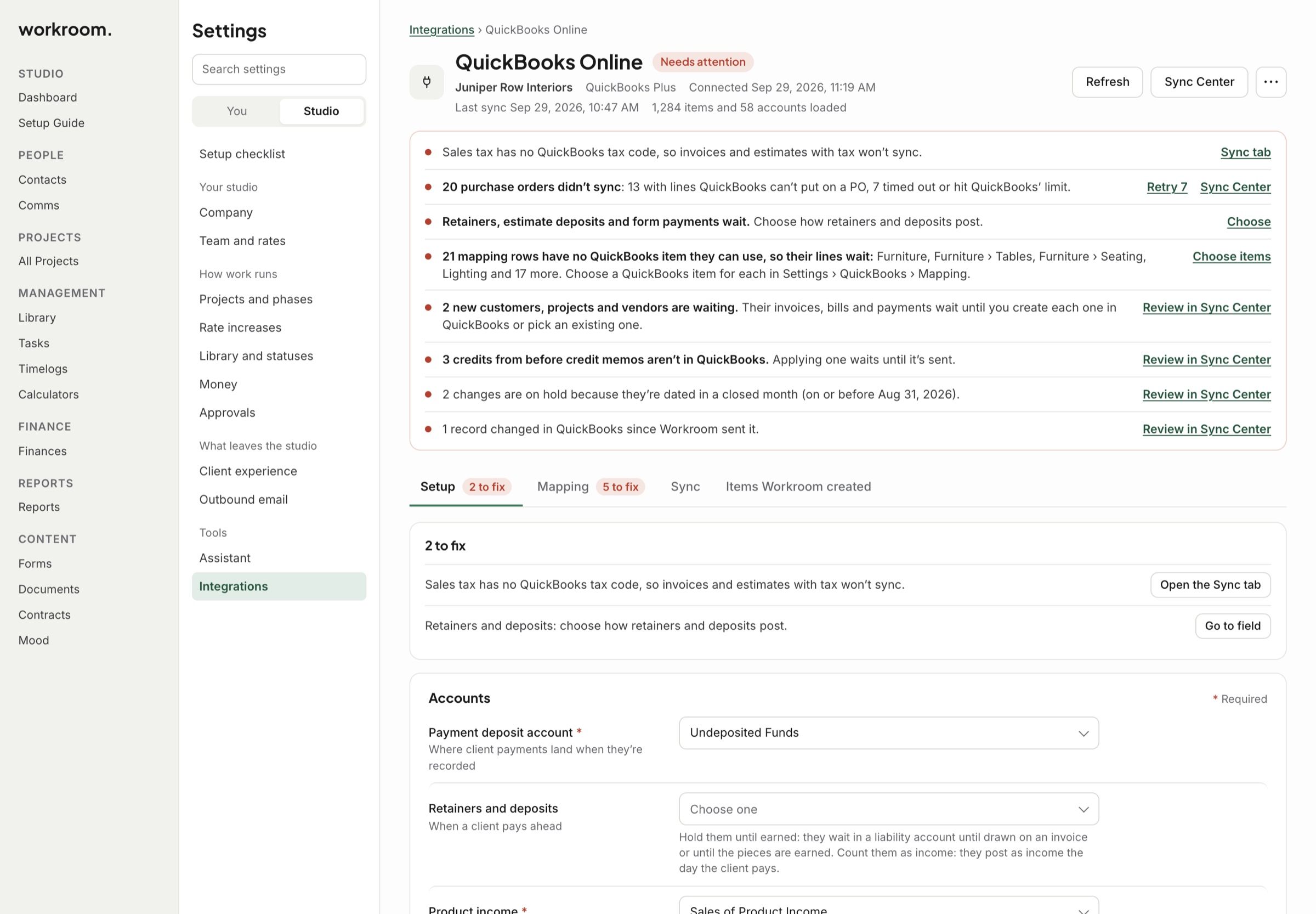
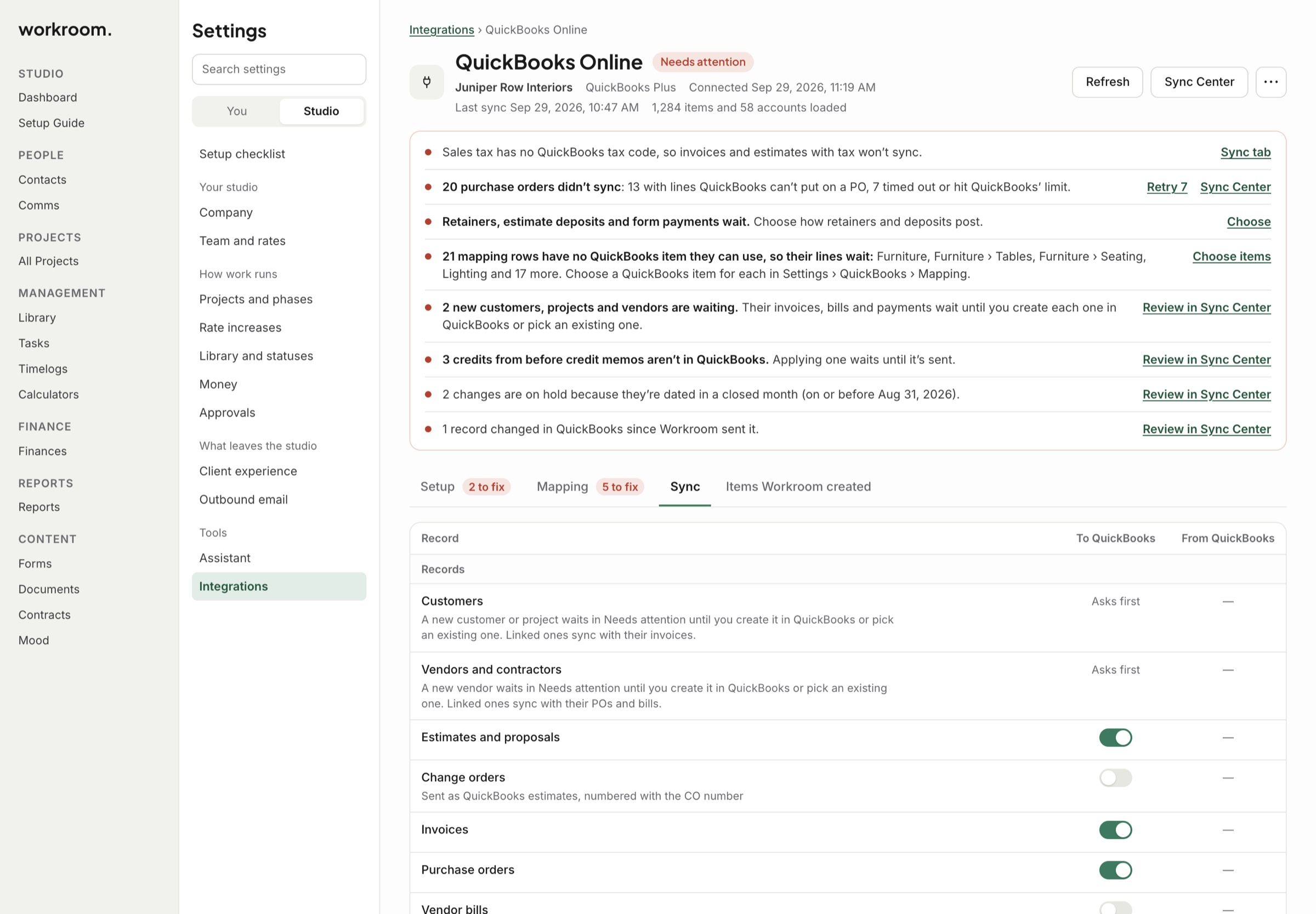
Go to Settings › Integrations and apps › QuickBooks Online. The top shows your QuickBooks company, your plan and the last sync, with Refresh and Sync Center. Anything that needs you is listed under it, each with a link to fix it.
The four tabs
Setup: where client payments land, how retainers and deposits post, your income and cost accounts, the sync start date, how projects show, when POs become bills, and closed months.
Mapping: a QuickBooks item for each product category, service and other line, plus purchasing, expenses, payments, design-build and tax codes.
Sync: what goes to QuickBooks, where you record payments, and sales tax.
Items Workroom created: every item Workroom has made in your QuickBooks, and what uses it.
Good to know
Workroom never creates an item, customer or vendor in your QuickBooks without asking first.
If someone changes a record in QuickBooks after Workroom sent it, Workroom doesn’t overwrite it. You pick which version to keep.
Changes dated in a month QuickBooks has closed wait for you, if you choose that on Setup.
Related articles
Was this helpful?
Still need help? Ask the team