Spec Packages
Written By Timothy Murenzi
Overview
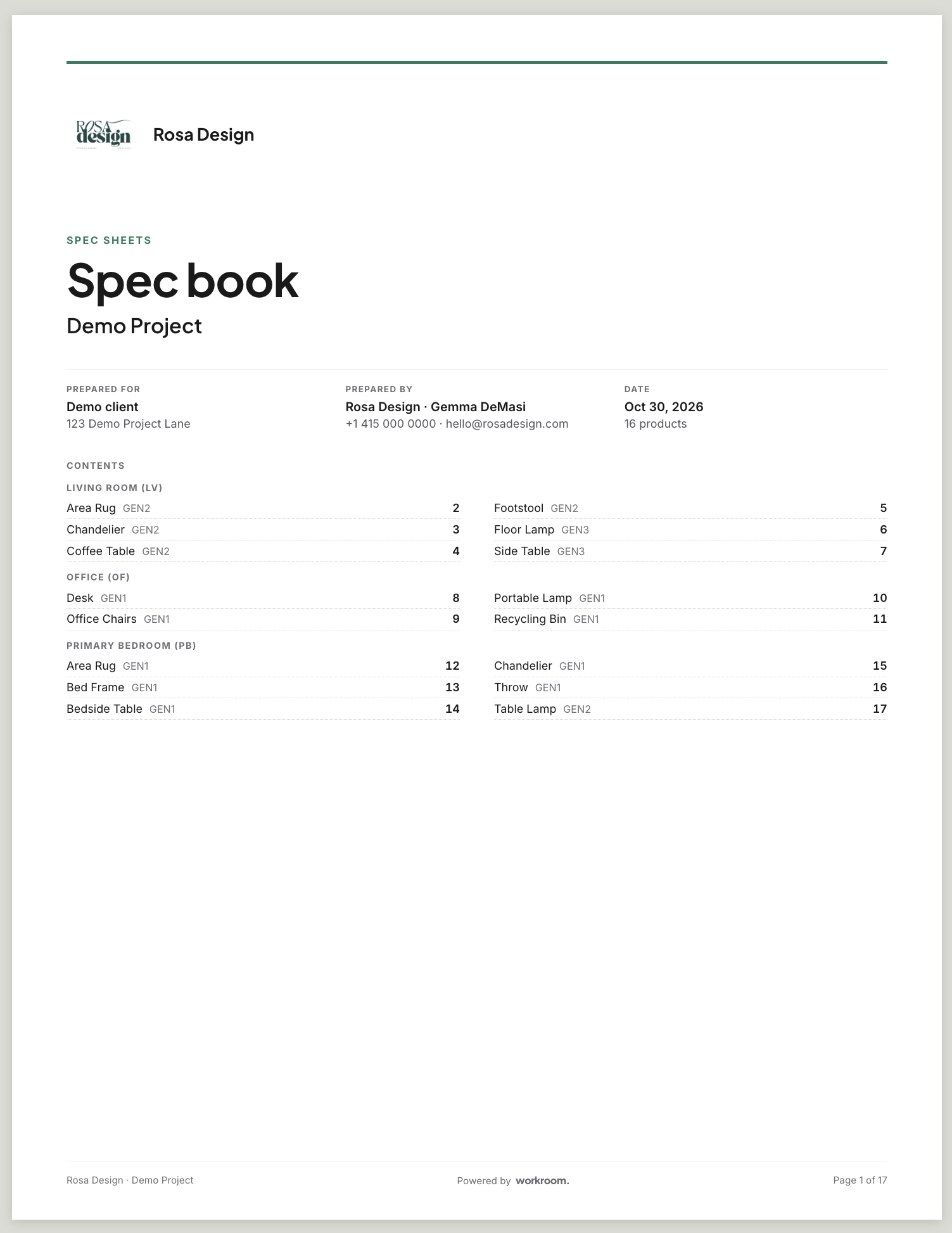
A spec book (spec package) is one PDF with a cover, contents and a page per product.
Watch it: the Spec Sets lesson in Campus, step 10, chapter 1, “The spec book” (starts at 0:04).
Build one
In Library, choose the project. Tick the products to include, or skip this to use the whole list.
Click Spec Sets (top bar or selection toolbar).
Choose Spec book under Ready to use, or Spec sheets under New report.
Set Who it's for and the product filters on the Content tab.
On Page, keep Start with a cover page on, set the title and an optional Note for the cover, and turn on Terms and conditions if needed.
Click Download → PDF.

What's in it
Cover: logo, title, project, prepared for / by, date, product count, and contents grouped by room.
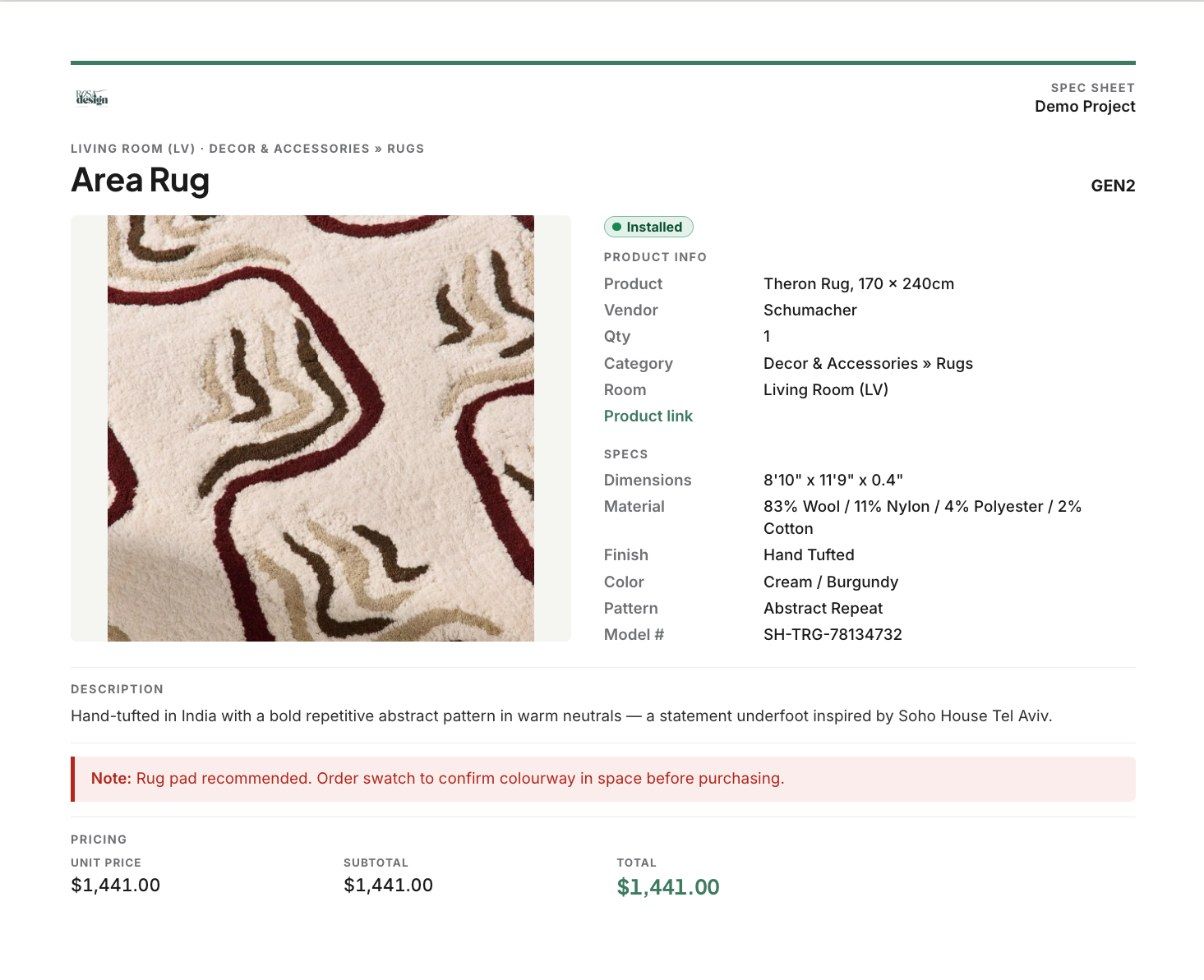
One page per product: name, spec #, status, image, product info, specs, description, important note and pricing (per the Layout tab).
Sharing
Download and attach to an email or Comms message.
Live link to share a link.
Tick Add to documents on the Save tab to file it with the project.
Related articles
Individual Spec Sheets
Tips & Best Practices
Generating Advanced PDF Spec Packages
Was this helpful?
Still need help? Ask the team